Инструкция
How to Recover Deleted WhatsApp Messages on Android
Updated September 3, 2026
As messengers have taken over, SMS is gradually disappearing. But the problems haven't gone away. When you need to recover a WhatsApp chat, you sometimes have to perform tricky maneuvers that don't always succeed.
Here you'll learn how to quickly recover a WhatsApp conversation. If you have a backup, the situation is easier; otherwise, try each of the other instructions below. It isn't hard — even beginners should be able to follow along.
Note. The methods below still work as of the last review. If you can't get one to work, leave a comment with the details: phone model, when the WhatsApp chat was deleted, and so on.
Contents:
На странице
- When a WhatsApp chat gets deleted
- How to check whether a WhatsApp backup was made
- The easy way to restore chats (if you have a backup)
- No WhatsApp backup found: possible reasons
- Recovering a WhatsApp chat without a backup
- Recovering chats from a local file
- Pulling chats from the Archive
- Using EaseUS Data Recovery Wizard
- Using Undeleter to recover messages in phone memory
- Preventing chat loss with Notification History
When a WhatsApp chat gets deleted
Most often, WhatsApp chat history disappears:
- After a chat is accidentally deleted in the mobile app (instead of "Add conversation" you hit "Delete chat"). Touchscreens make this easy to do;
- After an unsuccessful phone reflash or factory reset — all data is lost for good;
- After switching phones — you have to install the messenger again and the chats vanish.
The main ways to recover a WhatsApp chat:
- Using a backup (from Google Drive or a local one saved on the phone).
- Recovering on a computer via EaseUS Data Recovery Wizard.
- Using the Undeleter mobile utility.
How to check whether a WhatsApp backup was made
Every WhatsApp chat and message history is stored in backups. Backups are created automatically and on a schedule. On Android, older backups (up to 7 days) are kept locally, and archiving runs every night. On iOS, only the most recent version of the chat history is stored.
Backup only works if the Chat Backup option was enabled in WhatsApp settings. How to check whether backup was on:
- Open WhatsApp on Android or iPhone.

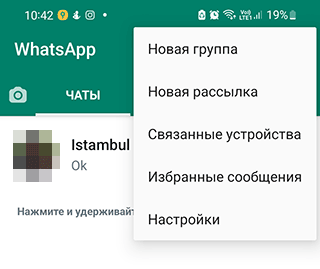
- Go to Settings — the menu icon is in the upper right (three dots).
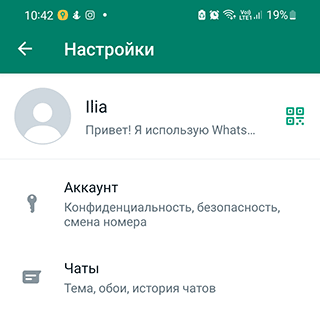
- Go to Chats → Chat Backup.
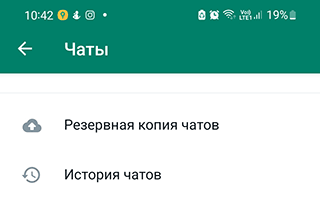
- On iOS this option is called Auto Backup; on Android it's "Back up to Google Drive".
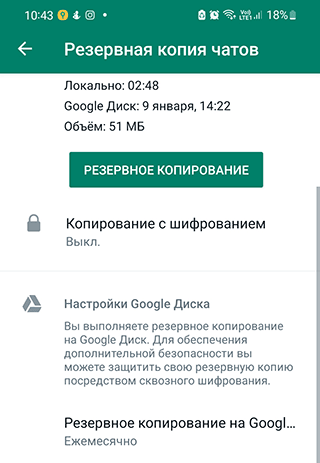
- Tapping that row lets you set the backup frequency or see the current one.
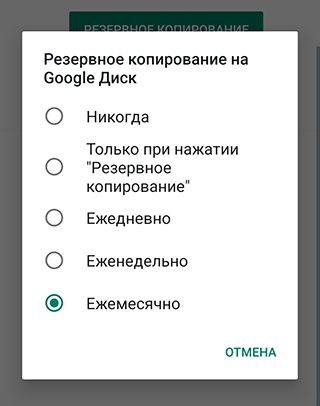
- If it was set to "Never", no backup was made.
Useful: How to recover photos and videos from a chat (if the other methods don't help)
The easy way to restore chats (if you have a backup)
The method works on both iOS and Android — let's walk through the Android case. On first launch, WhatsApp offers to set up Google Drive backups. The simplest and most obvious way to recover chats is from a file saved to Google Drive.
- Uninstall WhatsApp from the phone.
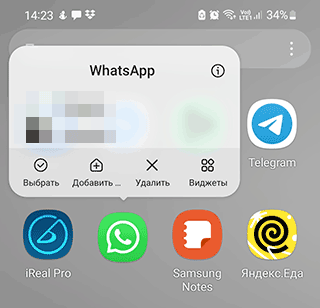
- Install it again — Download WhatsApp (latest version).
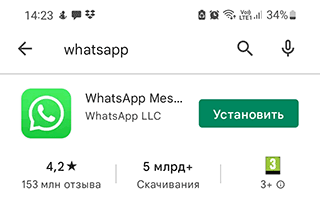
- After installation, open the messenger.
- Verify the phone number (use the same one as before).
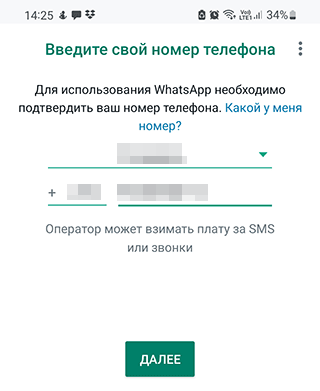
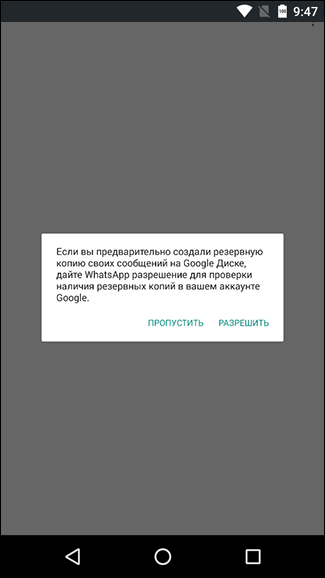
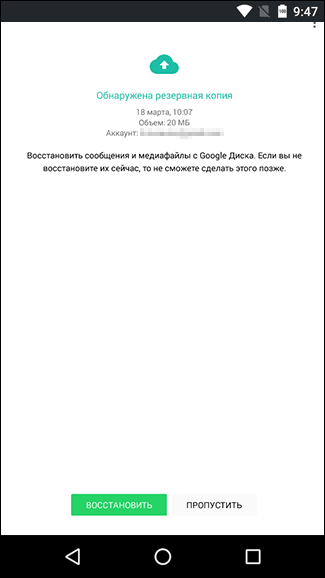
- Restore the backup. On the Restore screen, pick the restore method.
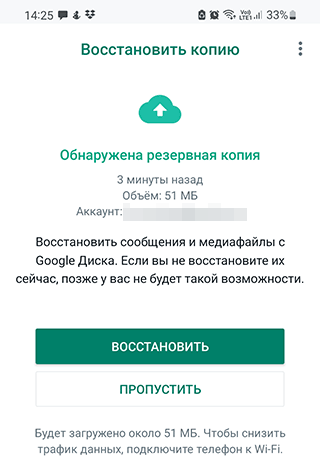
- Tap Restore.
No WhatsApp backup found: possible reasons
Say there wasn't a backup on the phone or in the cloud. This could have happened for a few reasons:
- You're using a different Google account than the one previously used with WhatsApp.
- When installing WhatsApp, you entered a phone number that hadn't been used with the app before.
- The SD card was damaged or has errors (or the backup file won't open).
- There simply isn't a backup on Google Drive or the memory card.
Recovering a WhatsApp chat without a backup
Another method that might work is installing Tenorshare UltData WhatsApp Recovery and trying to pull chat data with it. Even though the program doesn't recover text messages, in some cases photos and videos can come back — especially if they were on a memory card.
Tenorshare UltData WhatsApp Recovery supports many device models, including Samsung Galaxy S22, Xiaomi, Redmi, Google Pixel, and other Android devices.
The program doesn't require prior study. It installs on both Windows and macOS. Here's how to recover WhatsApp chats with Tenorshare UltData WhatsApp Recovery.
Step 1. Download the program to your computer by clicking Free download.

Step 2. Install UltData WhatsApp Recovery, declining the quality-improvement program. Choose where to install the utility.
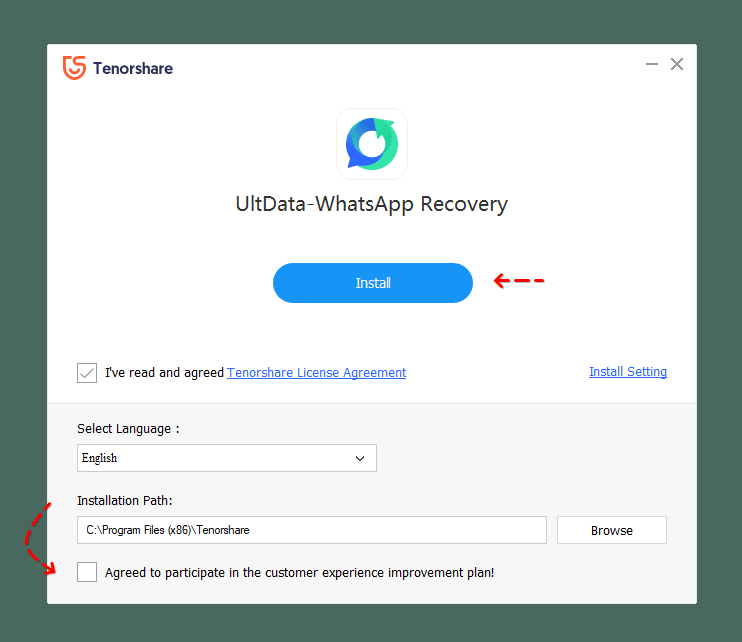
Click Start.
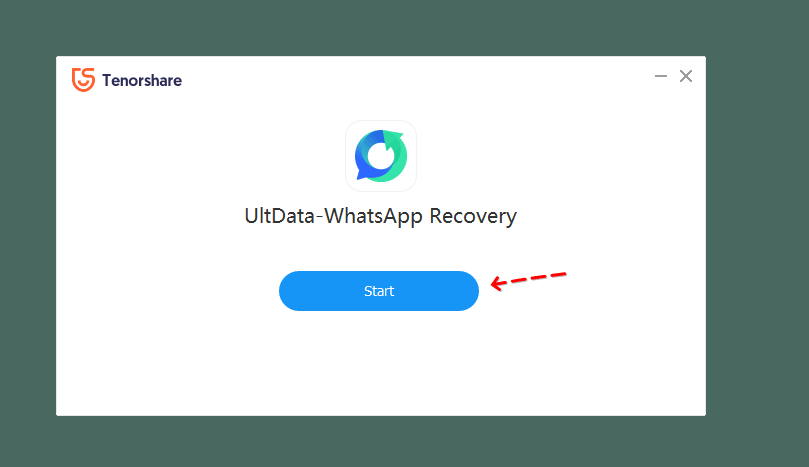
Step 3. Connect the Android device to the computer via USB.
Step 4. Open the Device section in the program and pick the device type — Android or iOS. On the phone, enable USB debugging.
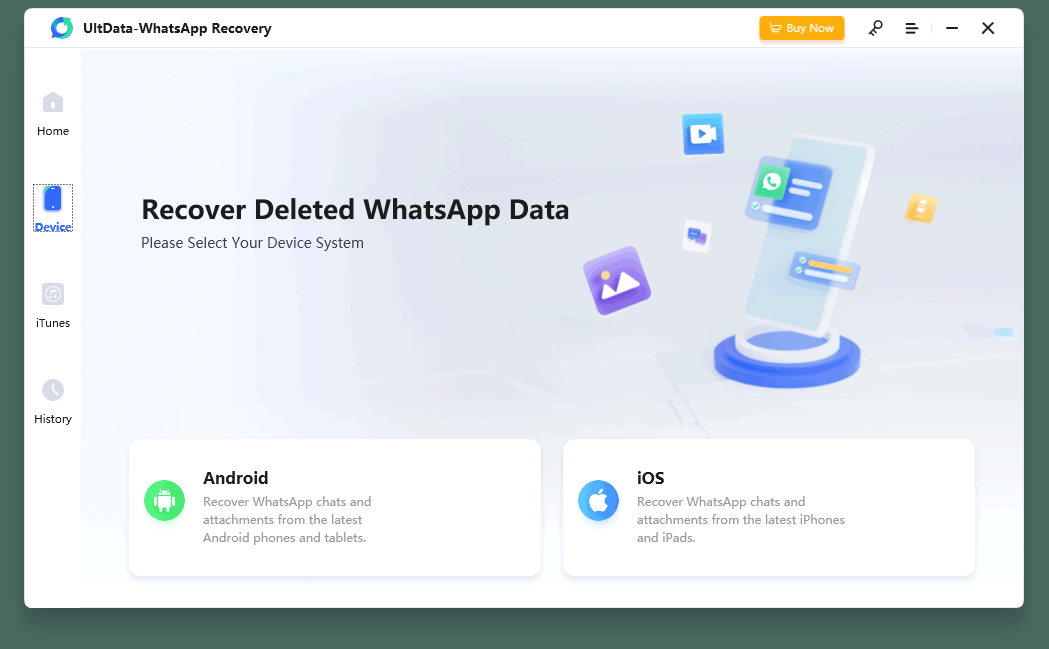
Step 5. Click Start Scan. Wait for the program to scan the phone's memory in full.
Step 6. The photos and videos found will be available for recovery in the appropriate sections.
Step 7. Check the boxes next to the messages you deleted from WhatsApp and want back. Click Recover.
Recovering chats from a local file
If you never connected a Google Drive account to WhatsApp, there's a backup plan: you can restore chats from a local file.
Chat backup files live at /sdcard/WhatsApp/. If you can't find them there, also check the phone's internal storage. If they're not there either, you may have deleted them. In that case, see the recovery method below using Undeleter/DiskDigger.
Note. Google Drive stores only the most recent version of chats, while the phone keeps 7 days of WhatsApp data.
How to restore a WhatsApp chat from a local file:
- Install a file manager — for example, TotalCMD or ES Explorer.
- Open the sdcard/WhatsApp/Databases folder. It holds every chat backup. If there are no files, also check main storage.
- Pick the file you want to restore (format: msgstore-YYYY-MM-DD.1.db.crypt12). Rename it to msgstore.db.crypt12.
- Uninstall WhatsApp (if installed) and install it fresh from Google Play.
- During setup, use the same phone number as before.
- On the "Restore chat history" screen, tap Restore to import the old chats from WhatsApp.
Handy tip! WhatsApp syncs messages on a schedule — around 2 AM local time. There's a chance you can restore chats if you uninstall and reinstall WhatsApp before sync happens. That way WhatsApp won't consider the deleted messages as deleted.
Pulling chats from the Archive
Similar to Instagram, WhatsApp can archive chats you don't need so you can bring them back and continue the conversation later. It's important to understand that archiving doesn't delete the chat content.
The Archive feature is convenient for keeping things tidy. On the flip side, a user can accidentally archive a chat and then not find how to bring it back. Restoring it is very simple.
iPhone instructions:
- Scroll the chat list and find the Archived entry.
- Tap it, then swipe right to left to restore.
- Tap Unarchive on the row you're swiping.
Android instructions:
- Scroll the chat list until you see "Archived chats" with an X.
- Tap the chat row you want to restore.
- Tap the unarchive icon.
Using EaseUS Data Recovery Wizard
If WhatsApp backups were stored on a computer and later deleted, any Windows data-recovery tool will do. EaseUS Data Recovery Wizard is one example. Using its deep-scan option, in theory you can recover backups. The text of chats you definitely won't get back, but images and videos might turn up among other files.
Still, there's a chance of success only if local backups actually existed on the hard drive and not too much time has passed since they were deleted from WhatsApp.
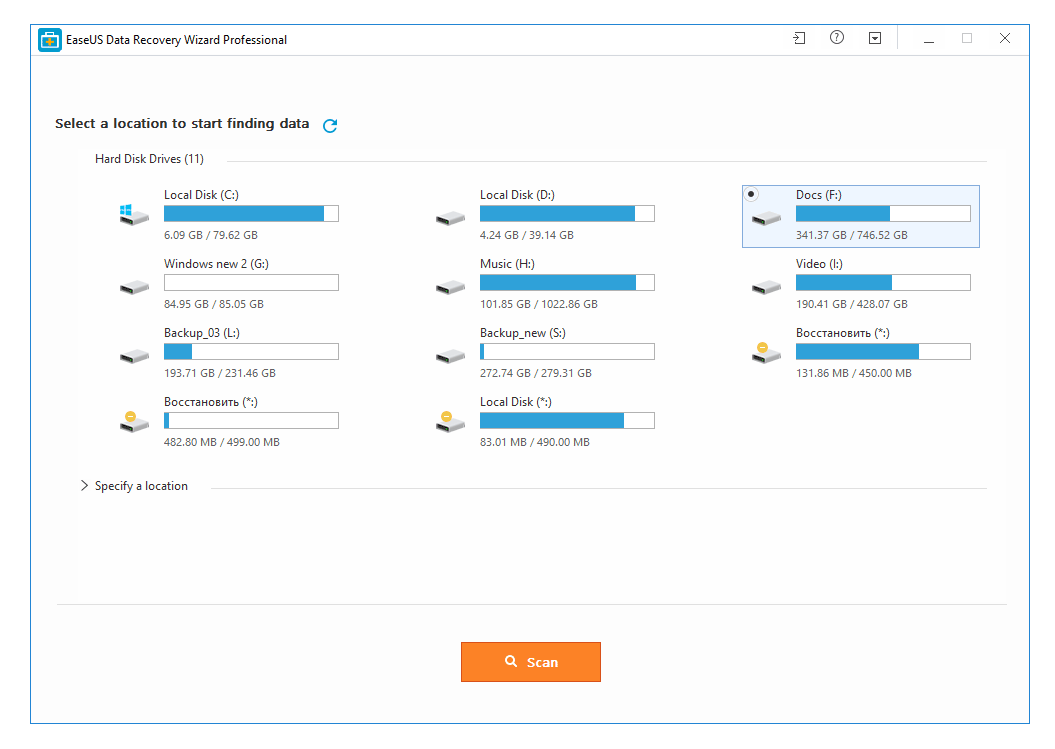
> Recovering chats via EaseUS Data Recovery Wizard
To recover chat files:
- Install EaseUS Data Recovery Wizard on your PC;
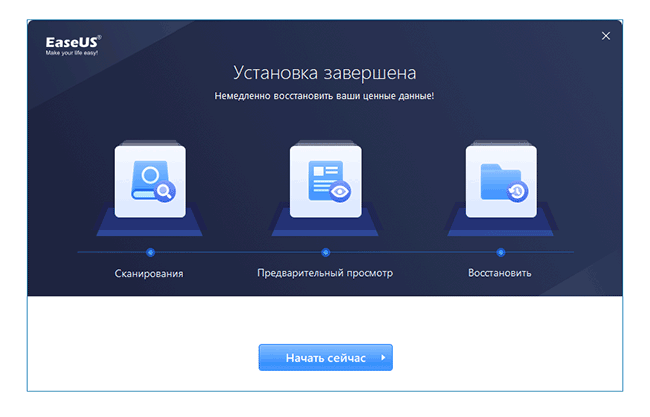
- Launch the program and click Start Now;
- Pick the drive that held the backups;
- Click Scan;
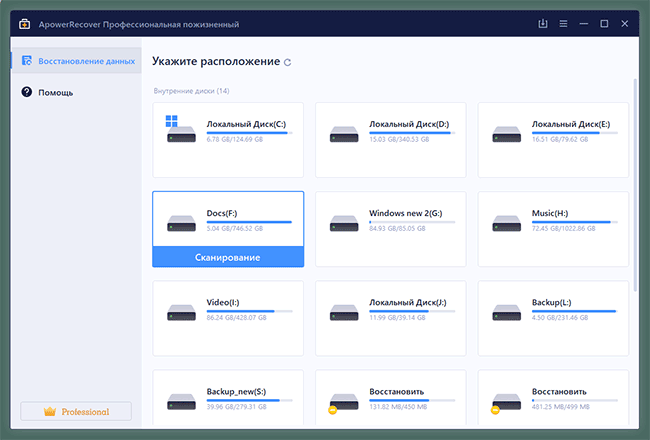
- Wait for the scan to finish;
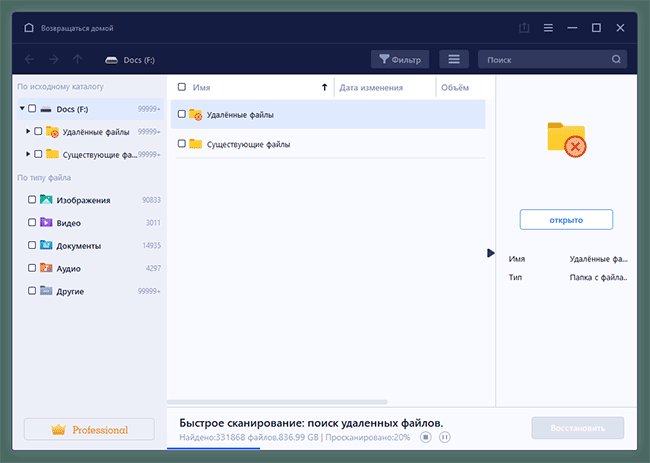
- Sort the files by type;
- Check the data types to recover (Video, Audio, Images);
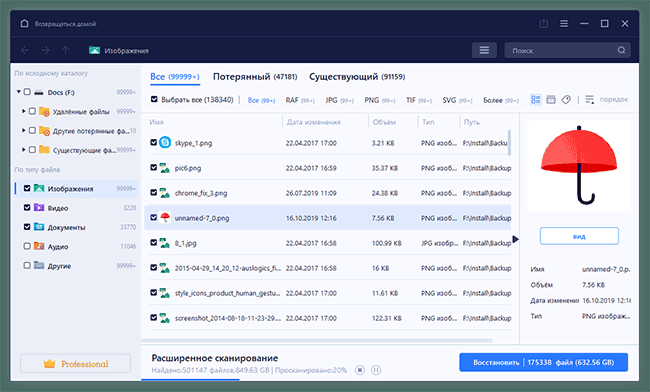
- Recover the files to disk using the Recover command.
The free version lets you save up to 2 GB. As a note, EaseUS Data Recovery Wizard has a fully free alternative — Recuva — with similar features and no file-size cap.
Using Undeleter to recover messages in phone memory
If the chat backup was stored in internal memory, try locating the files with Undeleter.
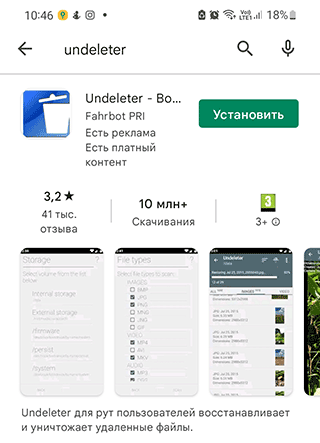
It scans phone memory and pulls out every file it can access. The program requires root access (superuser rights) to work.
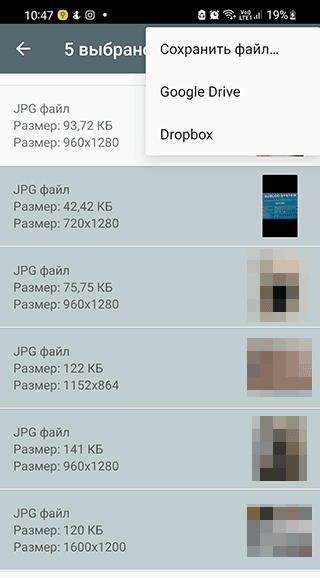
Note. Some guides claim that Undeleter can also recover WhatsApp call history. This isn't actually the case. All the app does is restore lost backup files that a user deleted.
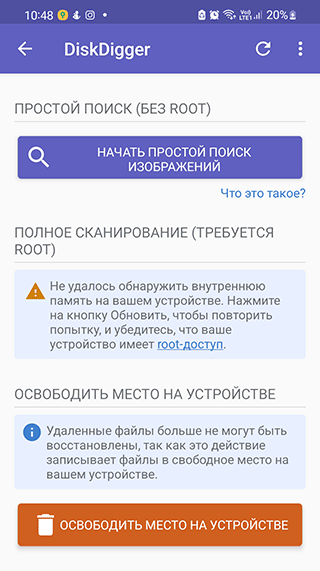
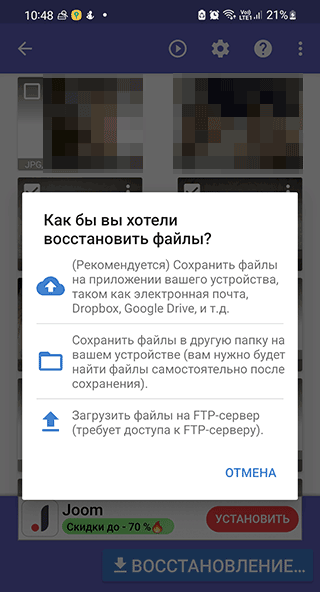
An alternative utility for finding deleted chats is DiskDigger for Android.
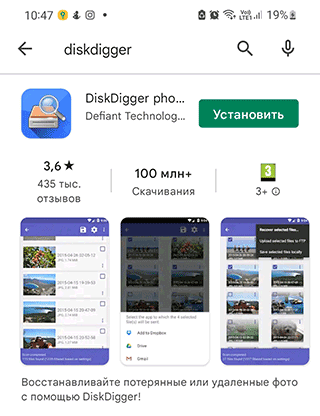
It scans both the SD card and internal memory. It's best suited to photo and video recovery, though it might also find user files from WhatsApp (we haven't verified this, so give it a try and share your experience).
Preventing chat loss with Notification History
According to TechWorm, Android users recently discovered another unofficial way to recover individual messages from a chat. It only works if you already have Notification History installed — you can't recover messages that were deleted before installation. This is a great option to guard against accidentally losing individual messages — for example, if the other party decides to erase their tracks.
You can retrieve deleted messages from Android's notification log. Here's how:
- Download Notification History.
- Install the app on Android and grant it the required permissions.
- Give Notification History access to notifications.
- Once specific messages are deleted, in the notification log you'll see the deleted message text along with a "Message deleted" status.
After installing the app, you'll need to allow it to access notifications. Then in the history, once an incoming WhatsApp message has been deleted by the sender, you'll see two notifications — the original message and a note that it was deleted.
Frequently Asked Questions
I deleted a chat and accidentally hit "Delete media files". How can I recover them? There are really important photos there that don't exist anywhere else!
Try reinstalling the WhatsApp app on your phone. On setup, it will offer to restore data using either Google cloud or a local copy from the phone.
I couldn't recover a deleted WhatsApp chat on my phone — I didn't have a backup. I tried Recuva.
Backups could have been stored on the SD card or in the phone's internal memory. In the second case, Undeleter may help — Recuva won't.
Chat files can only be recovered if you didn't manually disable backup during the initial messenger setup.
I accidentally deleted my chat backups. Important conversations were saved there. The history is empty, no chats at all. Can they be recovered?
Check the Google Drive trash: the WhatsApp backups may still be there. If the cloud backup is gone, look for a local file in phone memory. Or ask the recipient of the messages to send you the chat history.
Is it possible to recover an accidentally deleted chat with a specific contact in WhatsApp? I accidentally deleted a very important one.
The article covers all the available recovery methods. If none of them work, try the obvious one — ask the contact for a copy of the chat. Assuming they agree.
I uninstalled WhatsApp, hadn't been making backups, downloaded the app again, but all chat content was gone.
The thing is, WhatsApp doesn't store data on the server. That leaves looking for backups on your contacts' phones or restoring individual files with utilities like Undeleter or DiskDigger. There's no guaranteed or easy path.
I need to give my WhatsApp call history to law enforcement. I know how to save and print chats. Can call history be printed as well?
Very simple — take screenshots via WhatsApp's "Calls" tab.
Помощь
Не нашли ответ?
Опишите проблему — подскажем, куда двигаться дальше, и по возможности дополним материал.
Комментарии
Загружаем обсуждение…