Инструкция
How to Extract Audio from Video: 4 Free Ways
Updated September 18, 2026
Short version: there are four main ways to pull an audio track out of a video — a converter app on your phone, an online tool in your browser, a free desktop app (VLC or Audacity), and — if preserving the original quality matters — a one-line FFmpeg command. Below is how to do each and when to pick which.
Disclaimer: use these methods only on videos you have rights to — your own recordings, coursework, lectures, interviews or content you're licensed for. Extracting audio from third-party videos can violate copyright.
Contents
- Quick pick
- MP3, AAC, WAV — which format to choose
- On Android
- Online in a browser
- On the desktop: VLC and Audacity
- Lossless with FFmpeg
- FAQ
Quick pick
| Situation | Best tool | Why |
|---|---|---|
| Quick job on your phone | Video to MP3 Converter (Android) | Simple app, two-tap conversion |
| One-off desktop job, no installs | online-audio-converter.com | Runs in the browser, handles large files |
| Regular desktop audio work | VLC (converting) or Audacity (editing) | Free, no file-size caps |
| Lossless extraction | FFmpeg with -acodec copy | Copies the track without re-encoding |
MP3, AAC, WAV — which format to choose
MP3 — the universal format; plays anywhere. Great for voice, podcasts and everyday music. Good balance of quality and size.
AAC — a more modern codec: at the same file size it sounds better than MP3. Supported by every current device and player. AAC is what's usually inside an MP4 container, so extracting "as-is" from most videos gets you AAC.
WAV — uncompressed, maximum quality, but very large files. Used for professional editing and mixing; not practical for everyday storage.
FLAC — lossless compression: quality equal to WAV, size roughly half. A good choice when you need to keep original quality but want a smaller file.
| Format | Best for | Pros | Cons |
|---|---|---|---|
| MP3 | Voice, podcasts, casual music | Universal compatibility, small | Lossy compression |
| AAC | Music, video platforms, iOS | Better than MP3 at same bitrate | Not on very old devices |
| FLAC | Lossless music archive | Lossless, smaller than WAV | Larger than MP3/AAC |
| WAV | Editing, studio work | Maximum quality | Very large files |
Bitrate by content type:
- Voice, podcasts, interviews — 96–128 kbps
- Standard-quality music — 192 kbps
- High-quality music — 256–320 kbps
For most everyday needs, MP3 at 192 kbps is a solid default. If the source track inside the video is already AAC, it's better to just copy it rather than re-encode (see the FFmpeg section).
On Android
Google Play hosts dozens of near-identical apps called "Video to MP3 Converter." They all work the same way: open a video, pick a format and bitrate, wait for the conversion. Here is the general workflow that applies to almost any of them.
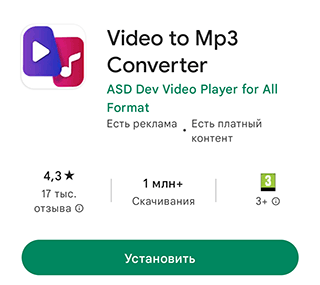
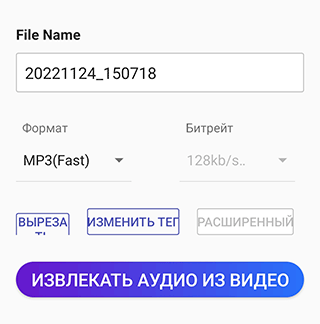
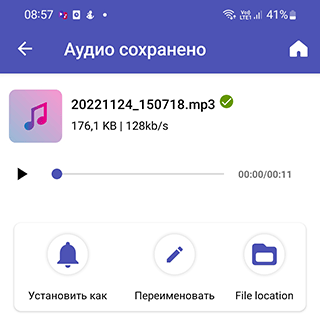
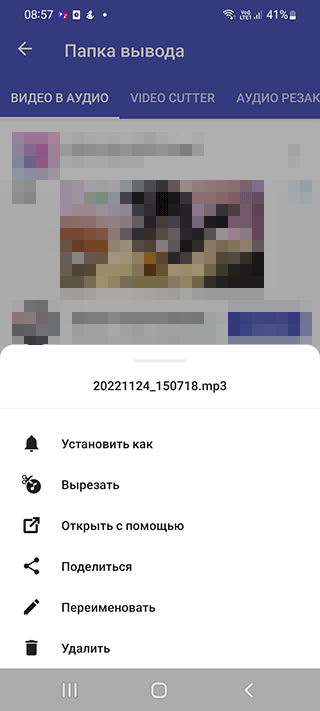
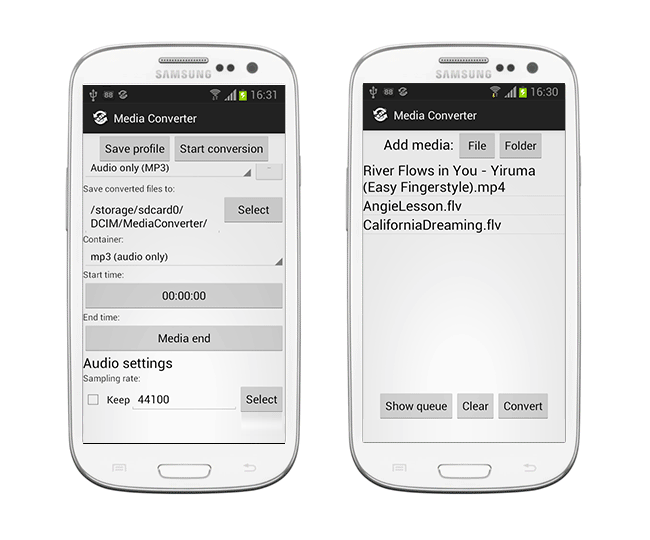
- Install a "Video to MP3 Converter" from Google Play (from Inverse.AI, InShot, EasyEsports or another well-rated developer).
- Open the app and grant media access. On Android 13+ choose "Allow all photos and videos" — otherwise the app only sees files you explicitly select.
- Pick the video from your gallery.
- Choose the format (MP3 or AAC) and bitrate. 128 kbps for voice; 192–320 kbps for music.
- Trim if needed — most apps have a basic trim tool.
- Start the conversion; the result lands in the app's output folder, from where you can share it, set it as a ringtone, or open it in any player.
Worth knowing:
- Free versions show ads, and some features (batch processing, 320 kbps, lossless mode) are usually behind a Pro upgrade.
- All these apps run on a bundled FFmpeg build — the quality difference between them is minimal; what varies is UI and how aggressive the ads are.
- If an app asks for access to your contacts, calls or SMS "to convert a video," that's a red flag. Pick a different one.
Online in a browser
For a one-off job, the simplest option is online-audio-converter.com. It's free, no aggressive ads, handles most video formats, and lets you save the result straight to your disk, Google Drive or Dropbox.
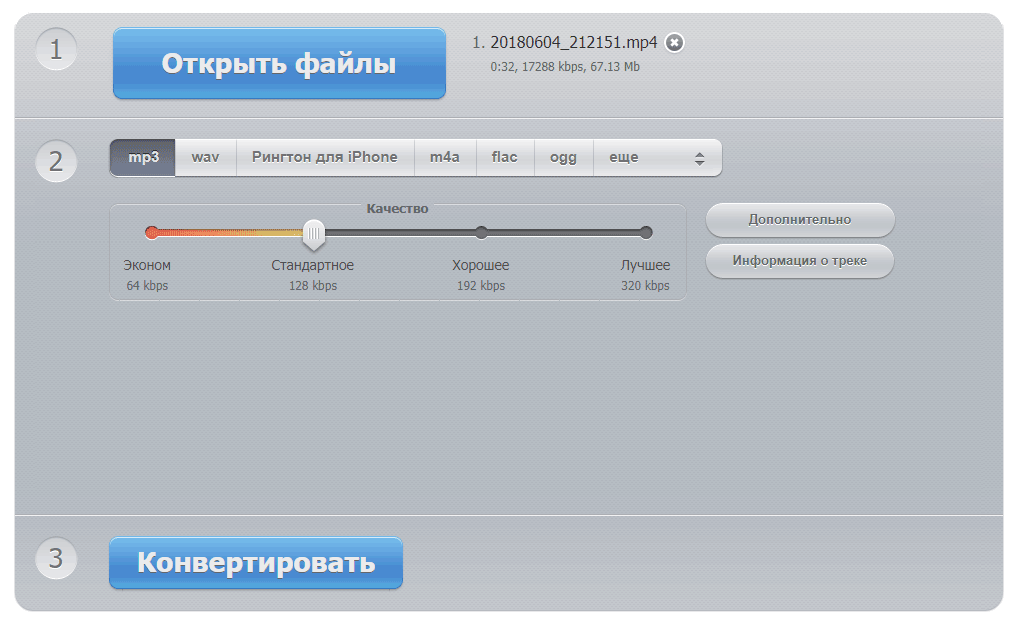
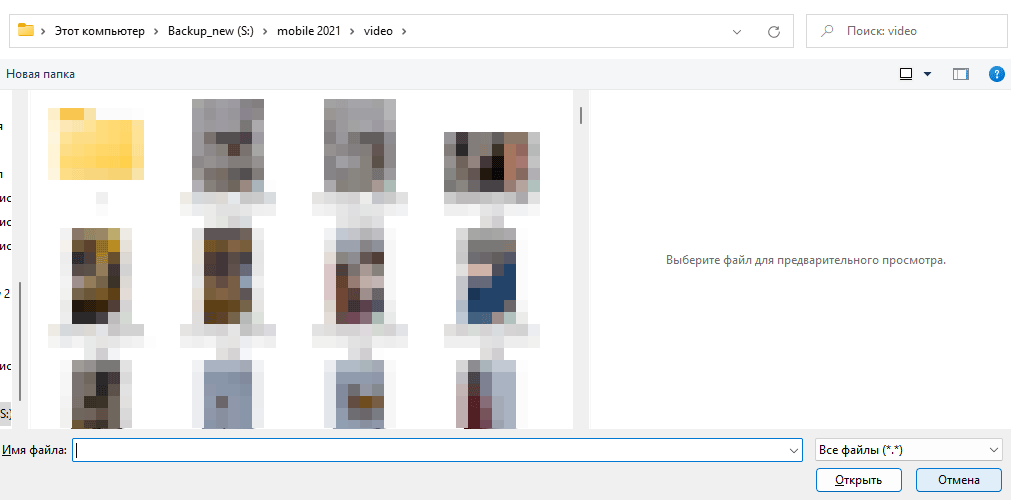

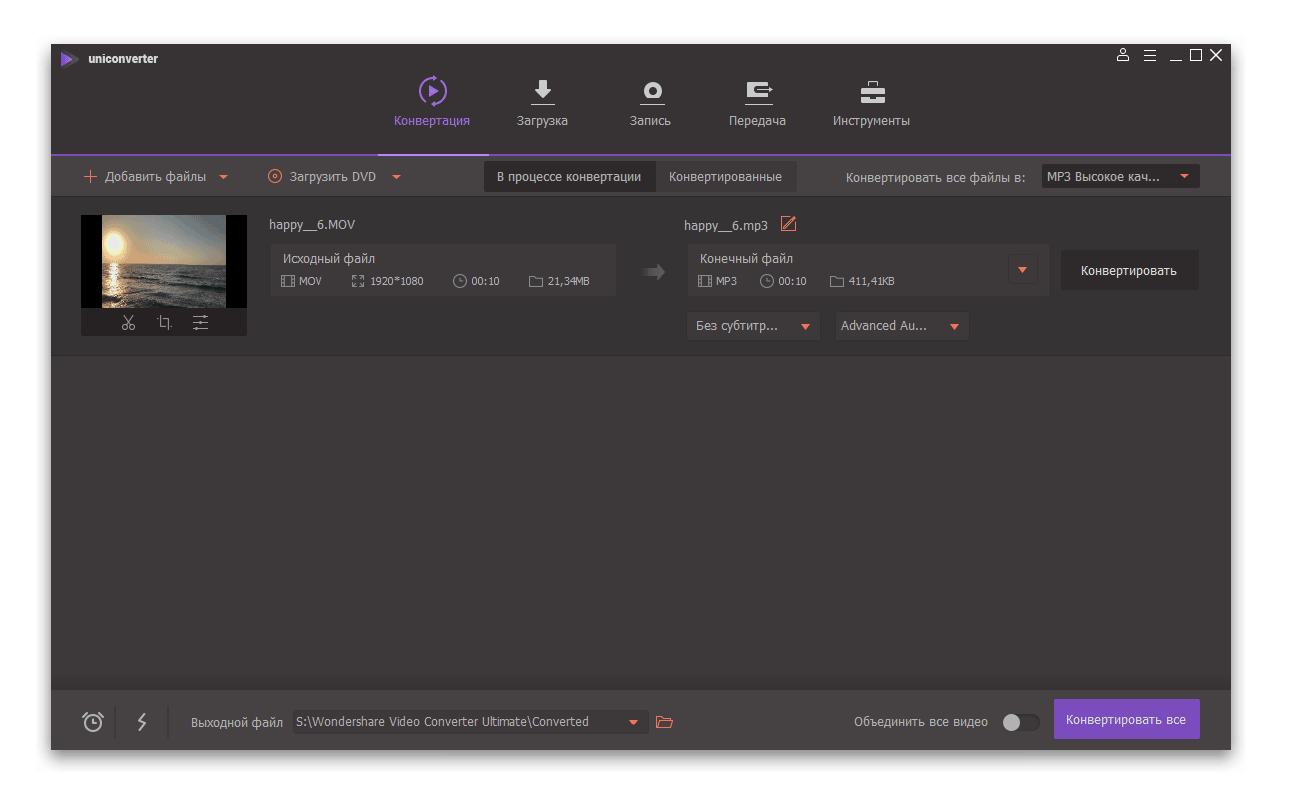
- Open files. On the homepage click "Open files" and pick your video. The service handles files up to about 2 GB (the current limit is shown on the site itself).
- Pick the format — MP3, AAC, OGG, FLAC, WAV and others.
- Tune the quality. Under "Advanced settings" you can set the bitrate (constant or variable), sample rate and channel count. Variable bitrate (VBR) saves space without hurting quality on quieter passages.
- Hit Convert and wait.
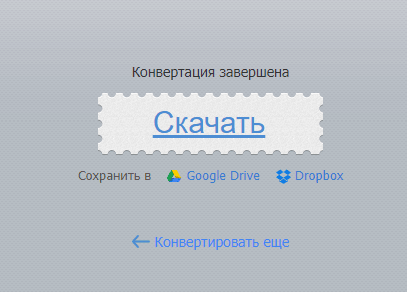
- Download the result or save it to your cloud storage.
Pros: no installation, works on any computer, and the same tool converts between audio formats too. Cons: you're limited by upload/download time, and free tiers cap file size.
On the desktop: VLC and Audacity
You don't need a dedicated audio-extractor app in 2026 — VLC (the free media player almost everyone already has) and Audacity (free audio editor) both handle the job. Available on Windows, macOS and Linux.
VLC — the simplest route
- Open VLC → Media → Convert / Save (or Ctrl+R).
- Click Add, pick your video, then Convert / Save at the bottom.
- In the "Profile" dropdown pick Audio — MP3 (or Audio — CD for WAV).
- Set the output name and path in "Destination file" → Start.
Under the hood, VLC uses the same FFmpeg engine — just with a GUI. No file-size limits.
Audacity — when you need to edit the audio too
Audacity is the right pick if you also want to clean up the sound: remove noise, level the volume, splice clips together.
- Open Audacity → File → Import → Video. The app imports the audio track.
- Apply effects as needed: Normalize, Noise Reduction, Compressor, and so on.
- Export: File → Export → Export as MP3 / WAV / FLAC.
For MP4 files Audacity may ask you to install an FFmpeg library once — it walks you through the steps in the dialog itself.
Lossless with FFmpeg
All the methods above re-encode the audio — the original track is decoded and re-compressed into your target format, which always costs some quality. If the video already contains a usable audio track (typically AAC in MP4/MKV, or Opus in WebM), you can just copy it as-is, no re-encoding. It's both faster (seconds instead of minutes) and lossless.
The standard tool for this is FFmpeg, a free cross-platform command-line utility (Windows, macOS, Linux). Install via the official site; on Windows the easiest route is winget install ffmpeg, on macOS brew install ffmpeg.
The basic command — extract audio without re-encoding:
ffmpeg -i input.mp4 -vn -acodec copy output.aacBreakdown:
-i input.mp4— input video file-vn— "video none," skip the video stream-acodec copy— copy the audio codec as-isoutput.aac— output file; the extension must match the actual codec inside (.aacfor AAC,.mp3for MP3,.opusfor Opus,.ac3for AC-3).
Not sure what codec is inside? Run ffmpeg -i input.mp4 on its own — FFmpeg will print details of every stream, including the audio codec.
Extract a specific audio track (when there's more than one, e.g. original and dub):
ffmpeg -i input.mkv -map 0:a:0 -acodec copy audio_track1.aac-map 0:a:0 means "from the first input file, take the first (0) audio stream." The second stream would be 0:a:1, and so on.
Batch a whole folder (Windows cmd):
for %i in (*.mp4) do ffmpeg -i "%i" -vn -acodec copy "%~ni.aac"The same on macOS/Linux (bash):
for f in *.mp4; do ffmpeg -i "$f" -vn -acodec copy "${f%.mp4}.aac"; doneWhat if you need MP3 specifically? Then re-encoding is unavoidable — but you can set a good bitrate right away:
ffmpeg -i input.mp4 -vn -c:a libmp3lame -b:a 192k output.mp3FAQ
Can I extract audio without any quality loss?
Yes — by copying the audio track (-acodec copy in FFmpeg). The audio is preserved bit-for-bit, no re-compression.
Where is the extracted file saved?
Most converters let you set the path manually. On Android look for an "Output folder" setting; online tools drop the file into your browser's downloads folder; in VLC and FFmpeg you specify the destination yourself.
How long does extraction take?
Regular conversion runs from seconds to a few minutes, depending on video length and device power. Lossless extraction via FFmpeg or VLC is typically seconds, even for large files, because the data is copied rather than re-encoded.
Which audio format is best?
For everyday listening — MP3 or AAC (128–192 kbps for voice, 256–320 for music). For archive and professional work — FLAC or WAV.
How do I avoid quality loss during conversion?
Copy the audio track as-is whenever possible (-acodec copy). If a different format is required, pick a high bitrate and avoid re-encoding the same file multiple times — every cycle degrades the sound.
Помощь
Не нашли ответ?
Опишите проблему — подскажем, куда двигаться дальше, и по возможности дополним материал.
Комментарии
Загружаем обсуждение…