Инструкция
Where Is Trash on Android and How to Restore Deleted Files
Updated September 3, 2026
A guide to using the Trash on your phone. Where to find Trash on Samsung, how to clear it and remove it from the device, and how to access deleted files in Android's hidden storage.
These instructions were tested on several Samsung phones running One UI and on stock-Android devices from different manufacturers. The methods described are current for modern versions of Android at the time of the update, though some menu items and available features may differ slightly depending on the model, skin, and firmware version.
Below we cover how to use Trash on the phone, where to find Trash on Samsung and other devices, and how to access deleted files.
Quick decision guide:
- If you just deleted a photo or video through the stock Camera or Gallery app — check the Gallery Trash or Google Photos Trash first.
- If you need a "Trash" for any kind of file (documents, archives, etc.) — consider installing Dumpster or a file manager with a built-in trash.
- If the data is critical — try not to install new apps or record large files, and contact a data-recovery specialist or service center.
- Keep in mind: recovery is never guaranteed and depends heavily on your Android version, whether encryption is enabled, and how much new data has already been written on top of the deleted files.
Contents:
На странице
- Where Trash lives on Android
- The Dumpster mobile app — an Android trash equivalent
- Where to download Dumpster for Android
- How to find Trash (Dumpster)
- Choosing which files to keep in Trash
- Setting up auto-cleanup for Trash
- Where deleted files live on Android
- Comparing recovery methods
- How to empty the Trash on your phone
- How to find photos in Trash?
Where Trash lives on Android
On a computer, the Recycle Bin works like this: when you delete files or folders (via the Del key or the "Delete" right-click option), those files aren't actually erased. They're moved to a special system folder ("Recycle Bin"/"Trash") on the physical disk.
When you're running low on space, you can empty the Recycle Bin. If you don't, the files can be restored for some period of time, depending on Bin settings and size. The detailed mechanism is documented in Windows Help (official Microsoft documentation).
Android's file system works differently. There's no single, OS-level "Trash" that covers every file on the device the way desktop systems do. Each app developer can implement their own trash (as Gallery, Google Photos, and some file managers do), and those trashes only apply to files deleted from within that specific app.
So where do deleted files go? Unfortunately, there's no unified Trash on the phone — at least not out of the box. The only defaults are the built-in Gallery and a handful of apps (Google Photos, some file managers, cloud services).
That means if you delete files through a file manager (Total Commander, for example), recovering them is only possible with special utilities like DiskDigger — and even then not always (mostly if file-system access is available and the data hasn't been overwritten).
The Dumpster mobile app — an Android trash equivalent
One way to add a Trash function to Android is the Dumpster mobile app. It's essentially a Recycle Bin equivalent for your phone: it intercepts deletion of supported files and moves them into its own storage.
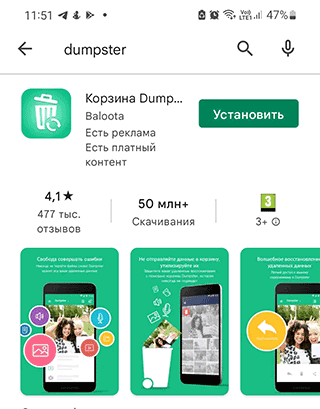
Once Dumpster is installed, you can delete files more safely, clear the Trash when needed, optionally keep deleted files in the cloud, and fine-tune auto-cleanup. On a test set of several hundred photos and videos, initial setup took about 10–15 minutes — most of that time was the first pass over storage and picking which file types to track.
Dumpster's main features:
- Restoring deleted photos, videos, music (common media formats are supported), and other formats.
- Setting up the Android trash doesn't require root access.
- Restoring deleted apps.
- Preview of photos before restoring them.
- Locking files to protect them from cleanup.
- Cloud storage for deleted files (available on paid tiers — check the current terms on Dumpster's Google Play listing).
- Auto-cleanup: after a chosen interval the Android Trash empties itself.
Recovery always depends on whether Dumpster managed to "catch" the file before it was deleted and whether the system has since overwritten it. In practice, it's best to configure the list of tracked file types right after installing.
Note. Apple has implemented Trash on iOS in response to user demand, since many people missed a mobile Recycle Bin. Separate trashes exist in apps like Mail and Photos — see Apple's help pages for details (official Apple site).
Where to download Dumpster for Android
Dumpster is available on the Google Play Store, where you can find the current version and terms of use.
Download Dumpster (the link goes to Dumpster's Google Play listing).
Current install counts, in-app purchases, and user reviews are visible on the Google Play listing (Dumpster's official page). Before installing, check the rating, recent reviews, and Android version requirements.
How to find Trash (Dumpster)
Dumpster installs on the phone like any regular app and works without root. That said, activating root access lets it dig deeper into the file system — but that's higher-risk territory best left to experienced users.
There are three ways to open the Trash:
- Tap the Dumpster app icon;

- Say "Ok Google, open Trash" — availability of the voice command depends on Google Assistant settings and device language, so it doesn't work on every phone;
- Open Gallery → Trash (a standard option for deleted camera photos and videos).
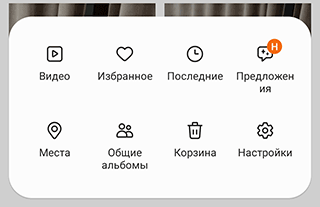
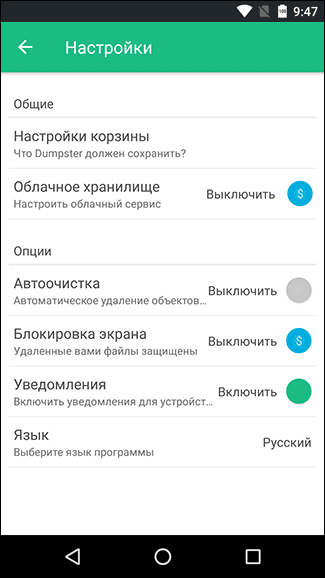
On first launch, Dumpster may offer to enable root access on the next screen. Rooting carries risks (potential loss of warranty, weaker security, broken banking and secure apps), so only enable it if you know what you're doing and accept the trade-offs.
Choosing which files to keep in Trash
In Dumpster's settings, choose the file types you want to keep an eye on: Photos, Videos, Music, Apps, and so on. The interface may vary slightly between Dumpster versions, but the logic of choosing types is usually the same.
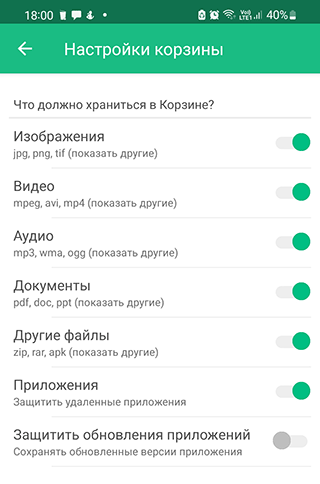
By default all checkboxes are on, so uncheck the ones you don't want in the Android Trash. For example, if you frequently delete photos and videos but rarely delete music, it makes sense to keep only images and video enabled in Dumpster so the storage doesn't fill up unnecessarily.
The app will then scan the memory card and device to build its database of files that could end up in Trash. Give it a few minutes on a full phone.

Setting up auto-cleanup for Trash
Auto-cleanup helps keep an Android phone or tablet tidy. At the same time, you're protected from sudden data loss: nothing happens to your files during the chosen window, and you can restore them in an emergency.
In the side panel, pick Auto-Clean. Here you set the interval at which Dumpster will empty the Trash. The available intervals depend on the current version of the app — check the options in the settings. You can always clear files from your Android manually.
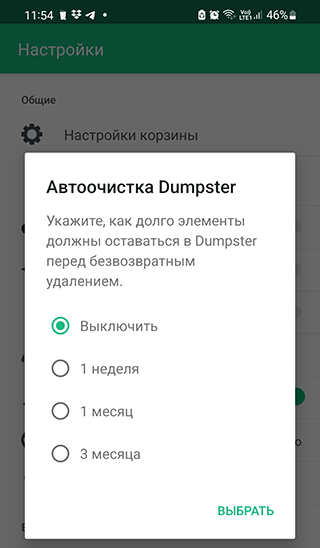
Auto-cleanup reduces the risk of running out of storage, but keep in mind: once the set time is up, older files will be deleted without any way to recover them from Dumpster.
Where deleted files live on Android
Once you delete a file on a phone or tablet, the system marks it as deleted and frees the space for new data. In stock Android, there's no unified Trash (only per-app ones — for example, in Gallery or Google Photos).
Note. Even so, with specialized software (on PC or mobile) you can sometimes recover part of the data, occasionally with damage or in reduced quality. There's no guarantee — the outcome depends on the device model, file system, whether encryption is enabled, and how heavily you've used the phone since deletion.
After deletion, the system removes the "pointer" to the file, and the freed space can be occupied by new data. That's why recovery attempts shouldn't be delayed: the longer you wait, the lower your chances.
If you installed Dumpster before the files were deleted, they get moved into its virtual Trash instead.
All user-deleted files are visible on the app's main screen.
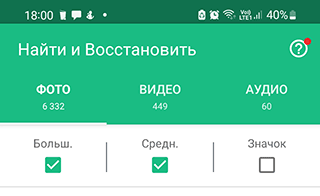
For quick browsing, use the filter (a drop-down with a list of file types).

The top bar also has sort options by date, size, type, and name.
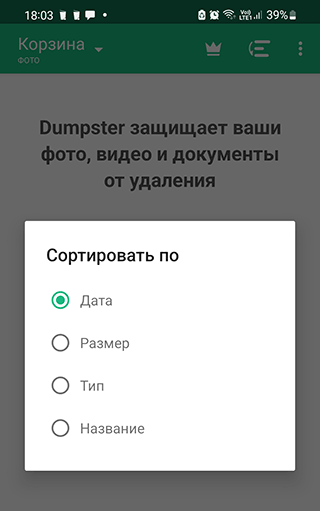
If you tap on any file and choose Restore, your files will be restored from Trash back to the original folder on Android (as long as the folder still exists and the file isn't damaged).
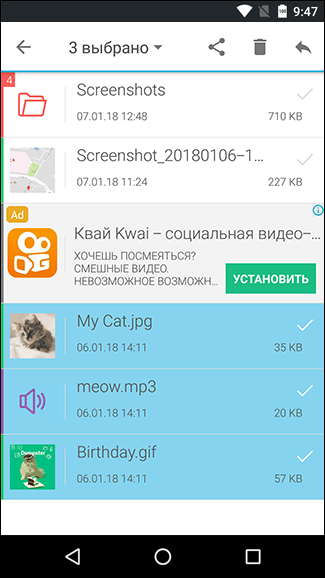
Batch selection is also available. Tap one file, then tap other items to add them to the selection.
Practical tip. If you're trying to recover recently deleted data (especially from internal storage), avoid installing new apps or recording large videos/photos, and — where possible — turn off automatic updates. This reduces the chance that the "freed" sectors will be overwritten.
Comparing recovery methods
| Method | What can be recovered | Root needed? | Difficulty / risk |
|---|---|---|---|
| Gallery / Google Photos Trash | Photos and videos deleted through the corresponding app | No | Low difficulty, minimal risk; limited retention window and media only |
| Dumpster app | Photos, videos, some documents, and apps tracked by Dumpster | No (root expands capabilities but isn't required) | Medium difficulty; requires prior setup, storage size and retention depend on plan |
| PC tools (DiskDigger and similar) | Various file types, including from an SD card | Often needed for internal storage | Higher difficulty, risk of damaging data with wrong steps; no guarantee of results |
How to empty the Trash on your phone
Emptying the Trash is a quick way to free up space on the phone and memory card, especially when it has accumulated large videos, images, and photos.
To manually delete every file from Dumpster's Trash:
- Open the app menu (the three dots).
- Choose Empty Trash.
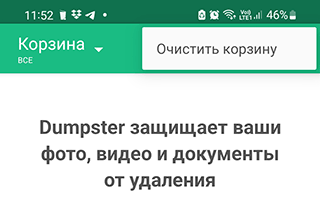
That's it — Dumpster's Trash is now empty.
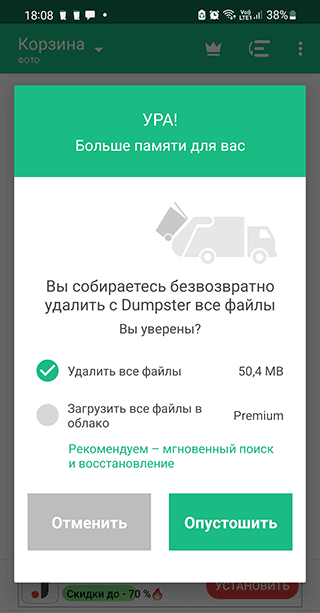
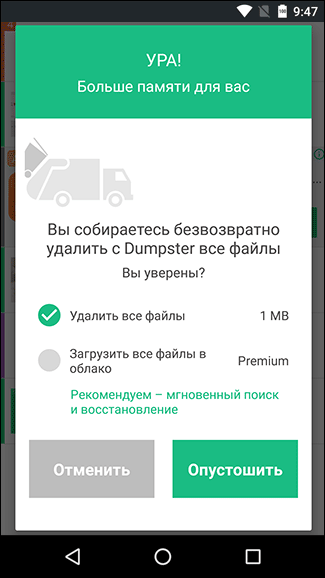
Be careful: emptying the Trash destroys everything inside! Recovery afterwards is nearly impossible, even with specialized software, so it's worth quickly skimming the list first to make sure nothing important is in there.
To auto-empty the Trash without user input:
- Open Dumpster's Settings.
- Enable the Auto-Clean option.
- Choose the interval after which files will be deleted.
Note. This feature is available only to app subscribers. Price and cloud-storage size depend on the current plan — check the app description on Google Play. Enabling this also usually removes ads from Dumpster.
Tip. How to clean up files on the phone when there's no free space?
One option is CCleaner. The utility analyzes phone memory and SD card content, clearing out junk and space hogs. In most cases the free version's basic feature set is enough for cleaning up a phone, but before installing, be sure to check reviews, permissions, and the app's privacy policy. The developer's official site is ccleaner.com; the app is also available on Google Play.
How to find photos in Trash?
Android's Gallery has a Trash of its own. Every media file — video or photo — deleted through the Gallery app ends up there. On Samsung the path may differ slightly from stock Android, but the logic is usually similar: the Gallery app has a "Trash" or "Recently Deleted" section.
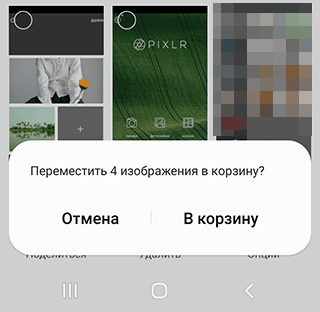
Here's how to find the photos:
- Tap Menu (three horizontal lines).

- Tap the Trash icon.
- Choose Photos and tap Restore.
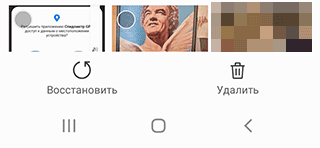
If you can't see the "Trash" section, open Gallery settings and check whether the deleted-files storage feature is enabled. During testing on Samsung phones, the Trash section was sometimes tucked away under "More" in the top menu — worth checking if you don't see it right away.
What to do right after accidentally deleting a file
- If possible, stop using the phone actively: don't install new apps or record long videos.
- Check the Trash of Gallery, Google Photos, or whichever app you deleted the file from (many services have their own trash with limited retention).
- If you were using Dumpster or another "Trash equivalent", open the app and see whether the file shows up there.
- For critical data, note the device model and Android version, and contact a data-recovery specialist or the brand's authorized service center.
Frequently Asked Questions
I drowned my phone with all my photos and videos on it. I just bought a new one and thought I'd restore everything from the cloud Trash, but more than 60 days have passed.
This most likely refers to Google Photos. The standard retention window in Trash is limited, and after that period files are automatically deleted from the service (official Google Photos Help). You very likely can't recover the shots from the Trash folder through normal means anymore.
Still, check other sources: Samsung Cloud (if sync was enabled — more in official Samsung support), Google Drive backups, and any other cloud services that might have auto-saved your media. For more recovery approaches, see this guide.
Important: recovery in this situation can't be guaranteed. If the data is critical, consider a specialized data-recovery service and get an upfront estimate of cost and probability of success.
The shortcuts of deleted apps on my Samsung tablet won't go away. There's no Trash to move them to. Even a factory reset didn't help.
Behavior like this is usually tied to the launcher and skin, not the "Trash" itself. Try installing an alternative Android launcher and see how the shortcuts behave there — that will tell you whether the problem is in the current UI or the system.
A factory reset (hard reset) should fully remove installed apps and their shortcuts, but the exact steps vary by model. See a detailed guide here and Samsung's official support. Remember that a hard reset wipes device data, so only do it after backing up and fully understanding the consequences.
If a proper reset doesn't solve the problem, we'd recommend contacting a Samsung authorized service center — it may be a software bug or firmware issue.
After a software update, all photos and videos on the phone were deleted. When I tap Trash they're gone for good — they aren't on any storage.
An official over-the-air update usually doesn't delete user data unless a reset was performed during the process. From the description it sounds like a hard reset happened — with the usual consequence that everything in internal storage may have been wiped.
Recovering files after a factory reset is difficult and far from always possible. First, check whether Google Photos sync or Samsung Cloud was enabled and whether cloud backups exist. Official backup and restore instructions are in Google's and Samsung's help.
Any drastic action (another reset, reflashing, formatting) can further hurt recovery chances, so for critical data it's better to consult a data-recovery specialist before experimenting.
In the Trash tab I only see deleted photos and none of the videos I recently deleted on Android. They should be there!
Most likely you accidentally emptied the Trash (or set up auto-cleanup after a certain interval), or the videos were deleted through a different app whose trash you aren't currently looking at.
Check where the clips were deleted from: the stock Gallery, a file manager, a third-party media player, or Google Photos. Each of these apps may have its own trash and its own retention window. If the trash was fully emptied or the retention period has elapsed, in-app recovery is no longer possible.
For very important data you can try specialized recovery software (for SD cards, for example), but success rates are limited and not guaranteed — especially if the device has been used actively since deletion.
I uninstalled and reinstalled Dumpster on Android, and all the files in the Trash disappeared. Can they be recovered?
How Dumpster stores files depends on the version and settings. Data can live in dedicated folders on the device or in the cloud (if the corresponding plan is active). When you uninstall an app, Android usually clears its user data — including, potentially, the Trash contents.
Simply reinstalling Dumpster from the Play Store won't always bring old files back: if the system already deleted local storage, standard tools can't restore it. The exception is if you previously enabled cloud storage in the paid version and the files are still accessible in your Dumpster account.
So before uninstalling any app that stores important data (including a "Trash"), check whether you have a backup or cloud sync. For more on how Dumpster stores data, see the app description and the developer FAQ on Google Play.
The phone was glitching; all the videos in the Trash got deleted. Now when I try to restore them, Android says this file type isn't supported.
An error like that can point to damaged files or a damaged file system on the storage. In this case it's worth reinstalling Dumpster from the Play Store and then checking the memory card for errors using Windows' built-in tools or equivalent utilities on other OSes.
To scan an SD card, take it out of the phone, connect it to a PC, and use chkdsk (or a similar diagnostic tool) to scan for errors. See Microsoft's chkdsk documentation for details. Note that these checks only work for memory cards and other removable storage; a phone's internal memory can't be tested this way.
Even after fixing file-system errors, recovery of the damaged videos isn't guaranteed. If the footage is especially valuable, consult a professional data-recovery lab before doing anything risky with the card.
Помощь
Не нашли ответ?
Опишите проблему — подскажем, куда двигаться дальше, и по возможности дополним материал.
Комментарии
Загружаем обсуждение…