Инструкция
How to Fix Sound Not Working in Windows 10 and Windows 11
Updated September 3, 2026
This guide walks through the possible ways to fix a Windows 10 audio system error, depending on what caused it.
In most cases, when sound stops working in Windows 10, you can fix a driver problem or a misconfigured mixer yourself. If something more serious comes up, you may need expert help — feel free to leave a question in the comments and we'll try to help.
Contents:
На странице
- Common sound problems in Windows 10
- Check the devices connected to your laptop or PC
- Check the audio drivers
- Restart the Windows 10 audio service
- Check sound settings with the Windows Volume Mixer
- Installing sound card drivers
- Updating drivers
- Disabling audio enhancements
- Using the command line
- Impact of third-party software
Common sound problems in Windows 10
Many users who install Windows 10, or update from an earlier version, run into audio issues:
- sound suddenly disappears across all apps and the OS with no warning,
- the Windows front audio panel stops working (the audio mixer isn't available),
- a notification says that headphones or speakers aren't connected,
- problems with audio drivers (Realtek, Creative, or others),
- audio in Windows 10 apps has become much quieter,
- after a Windows update, sound stops working even though the latest drivers are installed,
- headphones don't output sound, but the speakers still do.
Check the devices connected to your laptop or PC
Often, no sound in Windows comes down to a physical problem with the audio cable of whatever device is supposed to be playing the sound.
Try plugging the speakers or headphones into another device to check whether they work. If sound comes through there, the cable isn't the problem.
To check whether your speakers are working correctly:
- In the Windows notification area, right-click the speaker icon and choose "Open Sound settings".
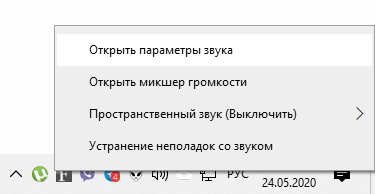
- Scroll to the bottom of the list and select Sound Control Panel.

- On the Playback tab, there should be a green check mark next to "Speakers".
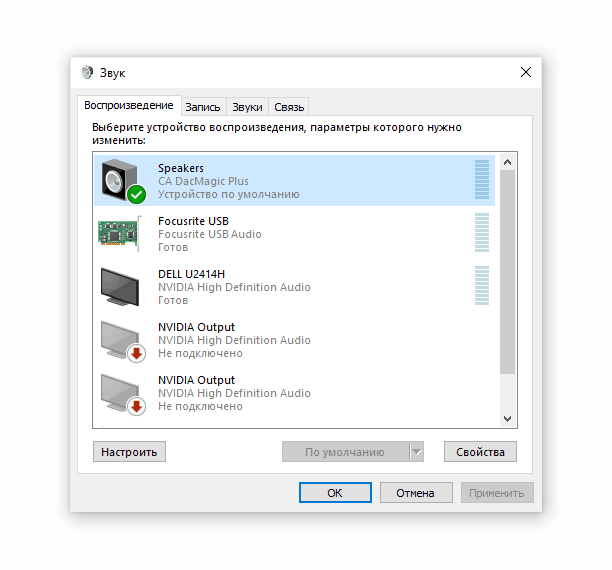
- Click the Configure button.
- Test your audio device (speakers or headphones) using the "Test" button.
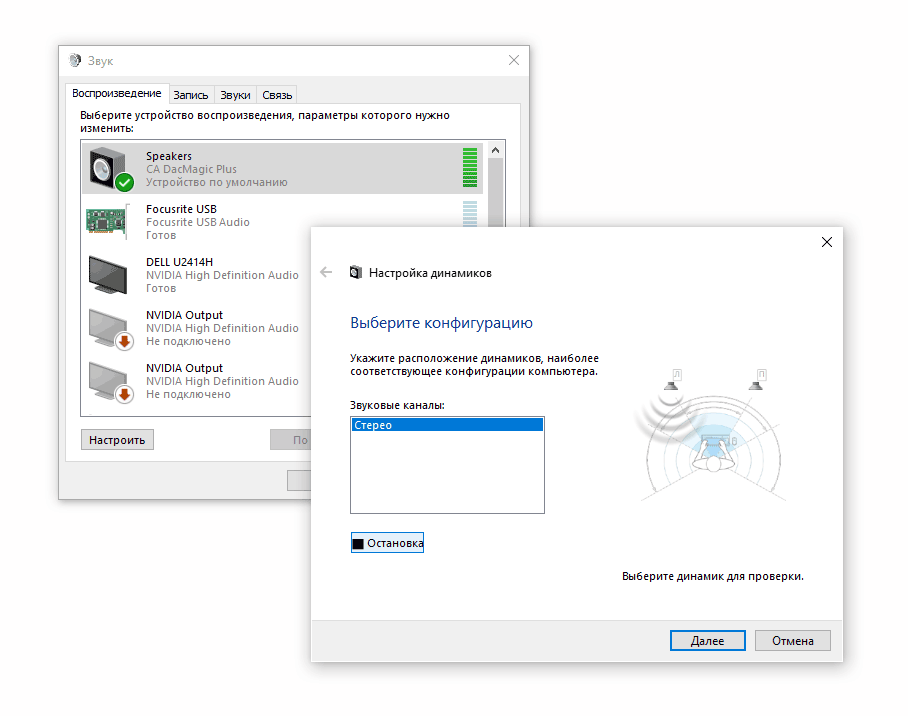
Keep tweaking settings until you get the result you want.
Check the audio drivers
A common cause of missing or distorted sound in Windows 10 is a driver problem.
To update the installed drivers through the OS itself:
- Open the Run dialog with Windows + R.
- Type devmgmt.msc and press Enter.
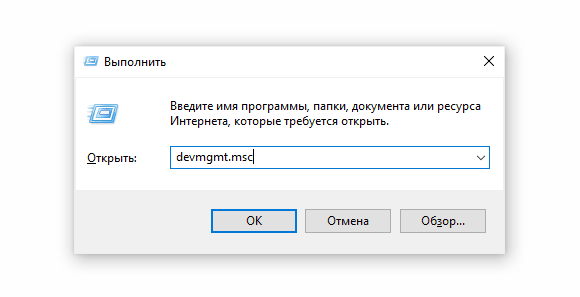
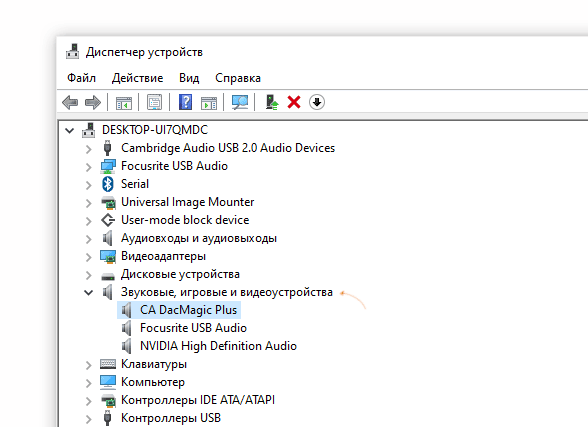
- Find your sound card by expanding the "Sound, video and game controllers" section.
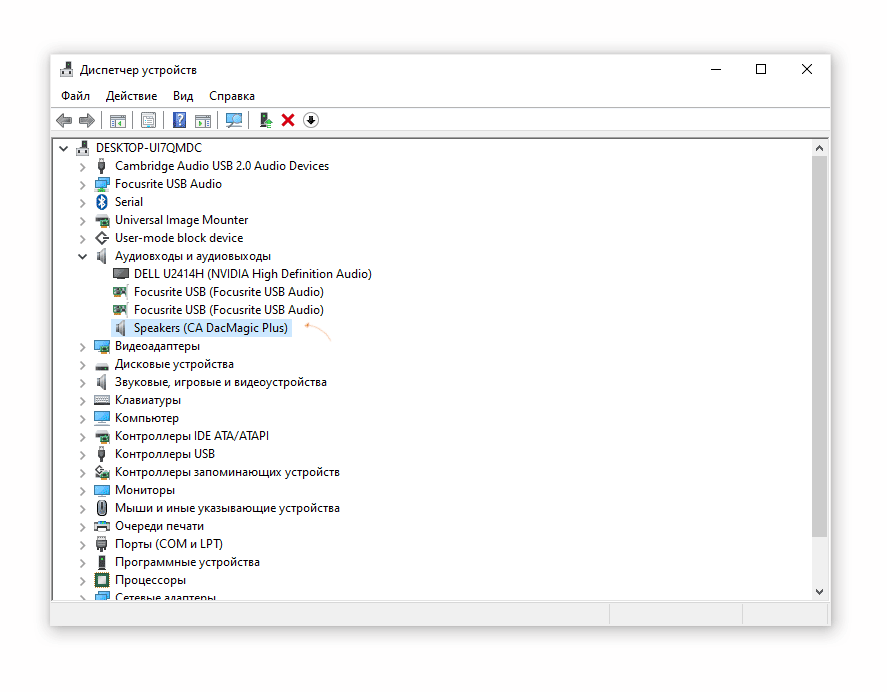
- Also take a look at the "Audio inputs and outputs" section.
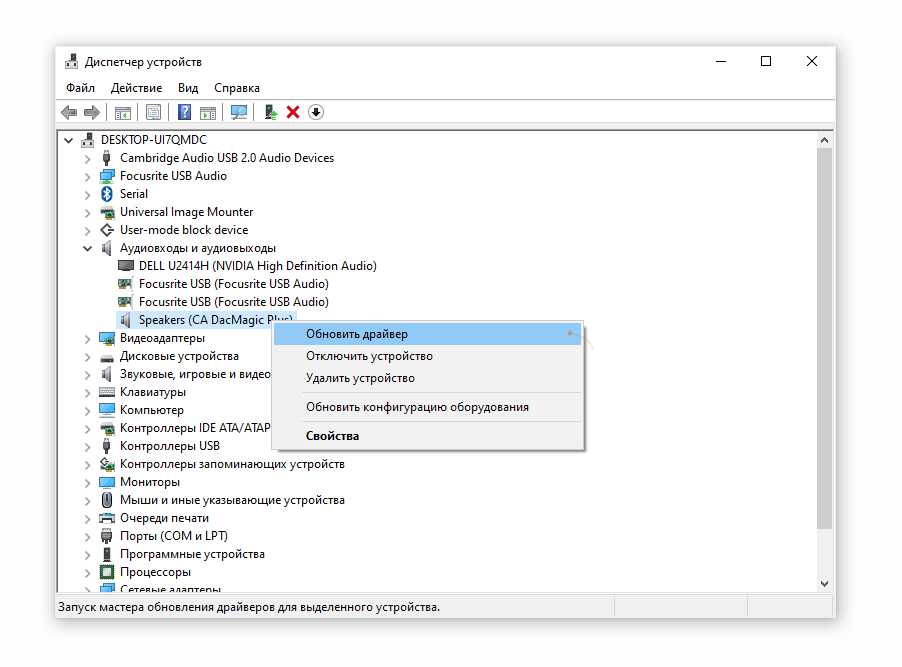
- Right-click the audio device name and choose "Update driver" from the context menu.
Restart the Windows 10 audio service
The Windows 10 audio subsystem often glitches for various reasons — for example, after installing a new program or a conflicting driver. Usually you can fix it with a simple but not-so-obvious trick: restarting the corresponding system service.
Here's how to restart the Windows audio subsystem:
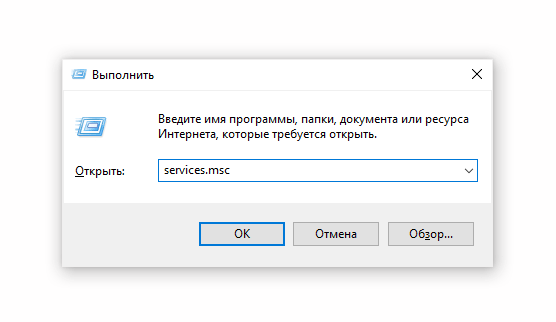
- Open the Run dialog with Win + R.
- Type services.msc into the text field and press Enter.
- Find the Windows Audio service in the list.
- Right-click the row and choose "Restart" from the context menu.
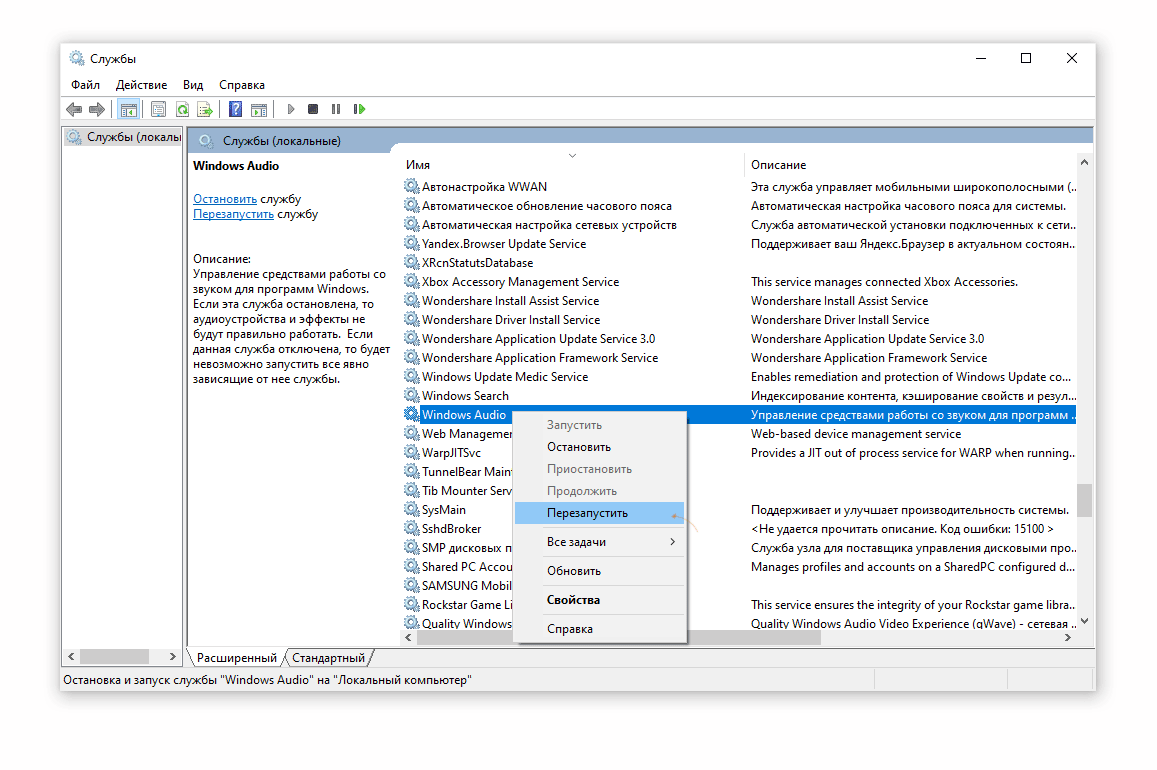
- Wait for the service to restart, then test the sound.
Check sound settings with the Windows Volume Mixer
The Volume Mixer is the panel that lists every connected audio device and lets you control the volume for individual apps. If audio has been accidentally muted for a specific app or device, the Windows 10 Volume Mixer is the easiest place to fix it.
To restore sound through the Mixer:
- Right-click the speaker icon.
- Choose "Open Volume mixer".
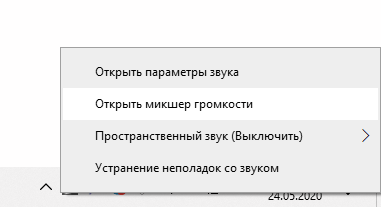
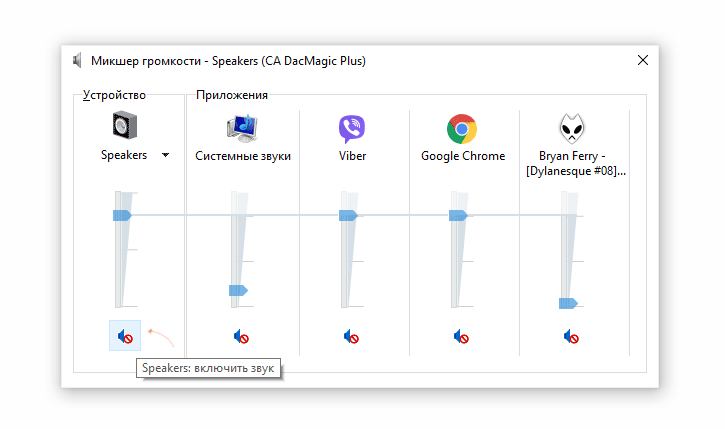
- Click the speaker icon for the corresponding app to unmute it.
- Drag the slider up to raise the volume.
- To unmute every device at once, click the speaker icon at the bottom of the corresponding audio device.
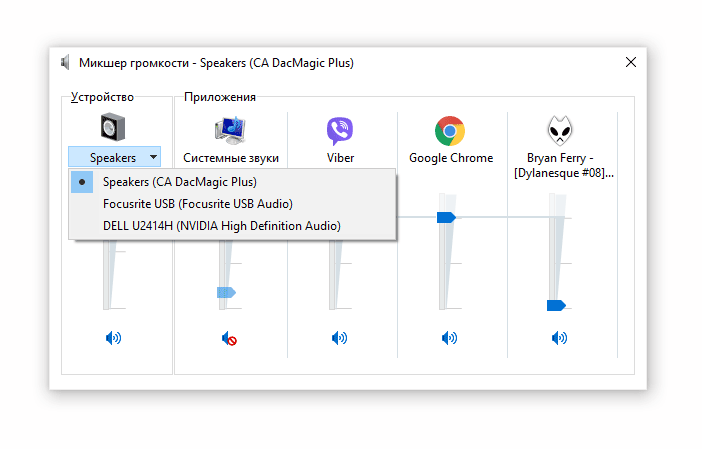
- You can also change the output device by picking a different entry in the Device drop-down (click the arrow to open it).
Installing sound card drivers
Here's the sequence:
- In Device Manager, open the "Sound, video and game controllers" section.
- Copy the audio device name from the Details tab.
- Search for the driver on Google.
- Download the files from the manufacturer's official website and install them.
- Restart the computer.
Updating drivers
Out-of-date audio drivers are one of the most common causes of sound problems. To get audio back, you need to update them. This is normally done through Device Manager or with a dedicated driver-update tool.
Steps:
- Download a driver-update utility from the developer's official website (for example, a well-known tool for installing or updating drivers).
- Run the program.
- Click "Scan now".
- Click "Install" once the scan finishes.
Here's an example using an Asus laptop:
- Open the manufacturer's official page.
- Find your model using the search icon.
- Open its product page.
- Go to Support → Drivers and Utilities.
- Choose your OS version from the drop-down.
- Look for "Audio". The driver is usually near the top of the list. Click Download.
- Run the downloaded archive and accept the installer's prompts.
- After the old driver is uninstalled, restart the device.
Disabling audio enhancements
Sound can stop working after updates that install automatically. Turning off audio enhancements can prevent unnecessary problems. Steps:
- In Control Panel, under "View mode", choose "Sound".
- Select a default device and open its Properties.
- Disable enhancements on the Enhancements tab.
- Test the sound.
Using the command line
This method is normally used when audio is crackling or distorted. Steps:
- Press Win+R, type cmd, and press Enter.
- Run:
bcdedit /set {default} disabledynamictick yes - Run:
bcdedit /set {default} useplatformclock true - Restart the computer.
- Test the result.
Impact of third-party software
Sometimes audio disappears for what look like unrelated reasons — for example, after an antivirus update.
To check whether that's what's happening:
- Open System Configuration (Win+R → msconfig).
- Go to the Services tab.
- Check "Hide all Microsoft services".
- Open Task Manager and disable everything under Startup.
- Restart the computer.
Scanning for viruses
If none of the above fixes worked, it's worth scanning the system for malware. An infection can damage software components, including the ones responsible for audio.
Some well-known scanners to try:
Here's the general sequence using Kaspersky as an example:
- Click Start Scan to launch the scan.
- Wait until it finishes to get the report.
Checking the microphone
Sometimes sound problems only show up when you try to use the microphone. To figure out what's wrong:
- Go to Start → Settings → Privacy.
- Choose Microphone → Allow apps to access your microphone → Change.
- Make sure the toggle is set to On.
If you've tried everything above and there's still no sound, the audio hardware itself may have failed and you may need to consider repair or replacement. If the device is still under warranty, taking it to an authorized service center is worth the trip.
Помощь
Не нашли ответ?
Опишите проблему — подскажем, куда двигаться дальше, и по возможности дополним материал.
Комментарии
Загружаем обсуждение…