Инструкция
How to Enter BIOS in Windows 11 and Check Boot Order
Updated September 3, 2026
An SSD offers noticeably higher read and write speeds than a hard drive, which is why people often use one to replace aging storage. But once the new drive is installed, users frequently run into the same problem: the computer doesn't see the new SSD.
Why does this happen, and how do you sort it out on your own? Below are the main reasons your PC might not show a new or previously used SSD.
Contents:
- SSD is not initialized
- Assigning a drive letter to the SSD
- Creating partitions on the drive
- Hidden partition
- Unsupported file system
- BIOS and hardware problems
- SSD driver problems (OS conflict)
Cause #1. The SSD is not initialized
After you buy and install a new SSD, it needs to be prepared for use. In some cases you don't need to do anything — the drive is already partitioned and ready to go. But if it isn't initialized, Windows 10 may not detect the SSD at all.
This section doesn't apply to drives that already contain data. In that case initialization wipes it (try the built-in troubleshooter first).
Here's a quick guide to initializing an SSD correctly:
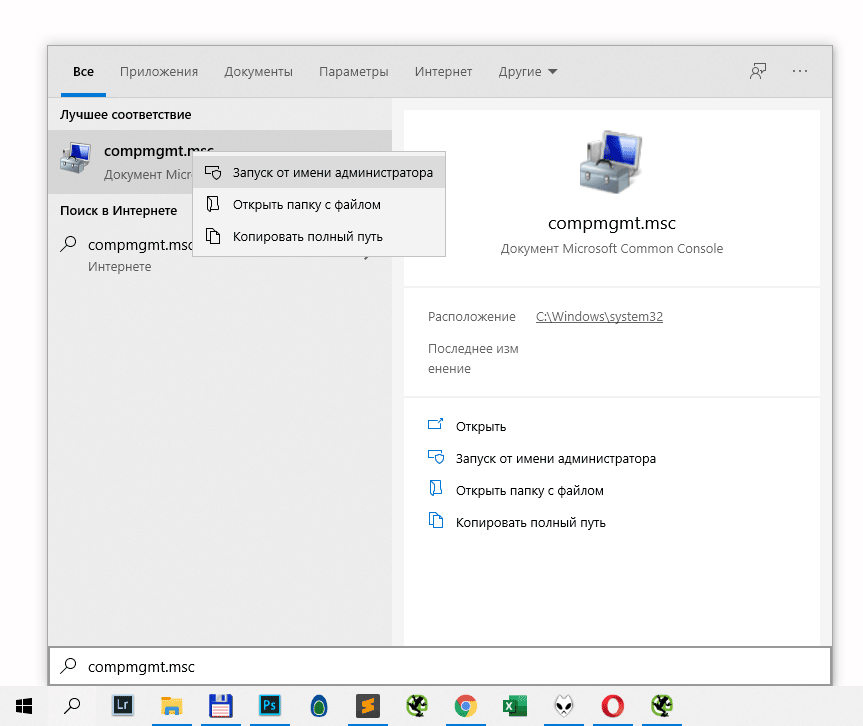
- Open Computer Management: Start → Run → compmgmt.msc (you can also launch it via Windows search). Run it as administrator using the right-click menu.
- In the side panel, open "Disk Management";
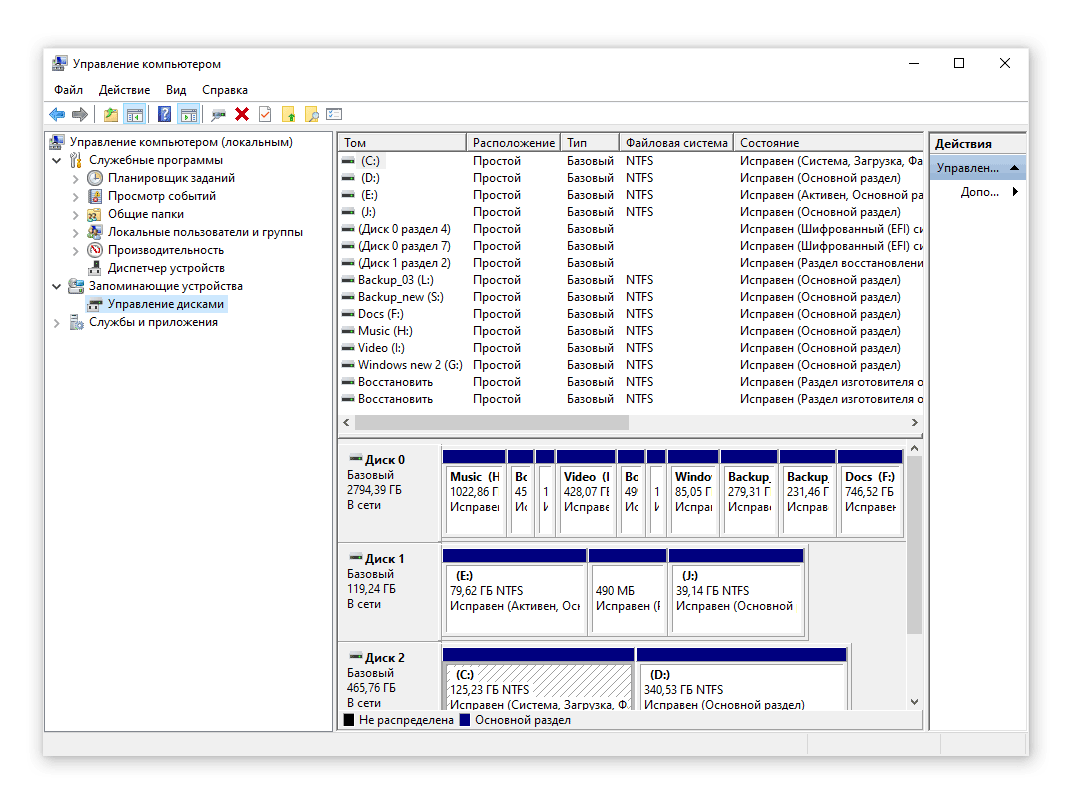
- Hover over the SSD's disk space, which is not yet recognized by the system as a volume. Right-click it and choose "Initialize".
- Click OK and wait for the process to complete. If it succeeds, the SSD will be mounted alongside the other devices.
- Open File Explorer and confirm that the drive is now visible.
If you see an error, the OS isn't seeing the SSD for another reason: an invalid signature, a connection issue, a hardware problem, and so on.
Cause #2. The drive has no assigned letter
Every drive and removable device is assigned a unique letter (B, D, C, etc.) after initialization. Without one, Windows can't display the SSD alongside other drives correctly.
To fix this:
- Open Disk Management again.
- Right-click the SSD.
- Choose "Change Drive Letter and Paths…" from the drop-down.
- Pick a letter, then click OK to save.
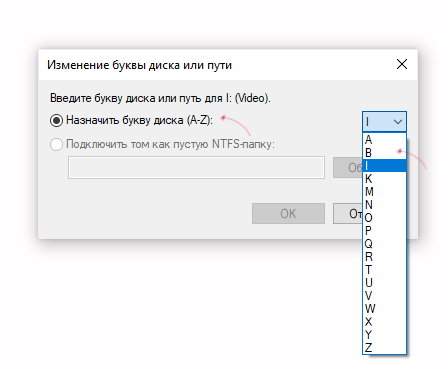
This step should be done after initialization; if initialization hasn't happened, "Change Drive Letter and Paths" may be greyed out. If everything looks fine but the letter still won't change, contact your PC manufacturer or Microsoft support.
Note: If the SSD will hold Windows or installed software and the "PC doesn't see SSD" problem returns later, don't rush to change the letter — it will make things worse. Windows may fail to boot or run unstably.
Cause 3: No partitions on the SSD
The SSD might be unpartitioned. Creating a new partition is a good way to test whether this is why your laptop or PC can't see the SSD. Steps:
- Sign in as an administrator;
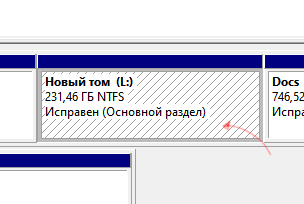
- Make sure there's unallocated space or free room in an additional partition on the drive.
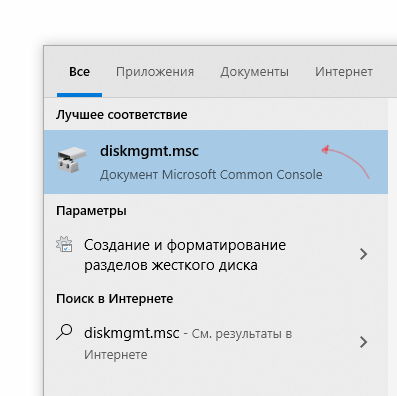
- Open Disk Management (Win + R > diskmgmt.msc > Enter).
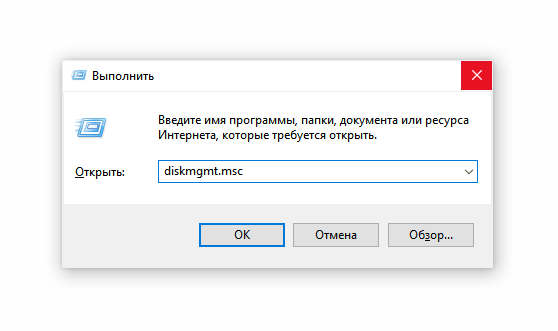
- Find the SSD in the list and click its row.
- In the unallocated area, right-click and choose "New Simple Volume…".
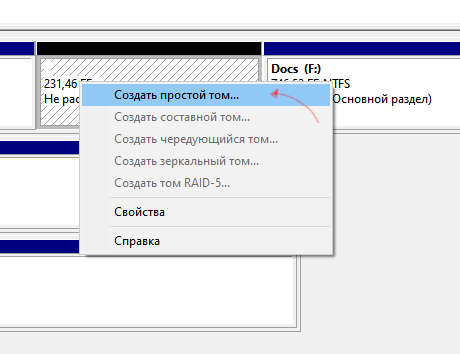
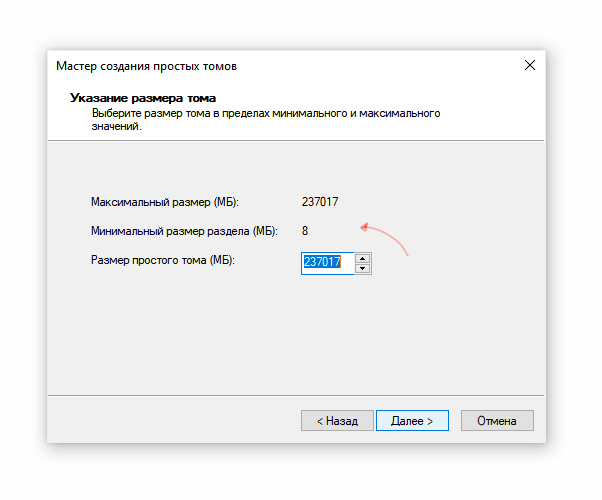
- The New Volume wizard opens. Follow the prompts.
- Set the volume size,
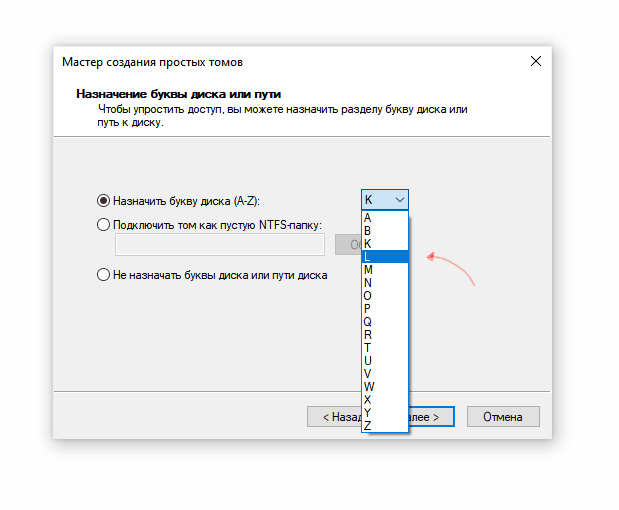
- choose a letter for the new drive,
- and format the volume.
- Click Finish.
- Check whether the SSD now appears in File Explorer.
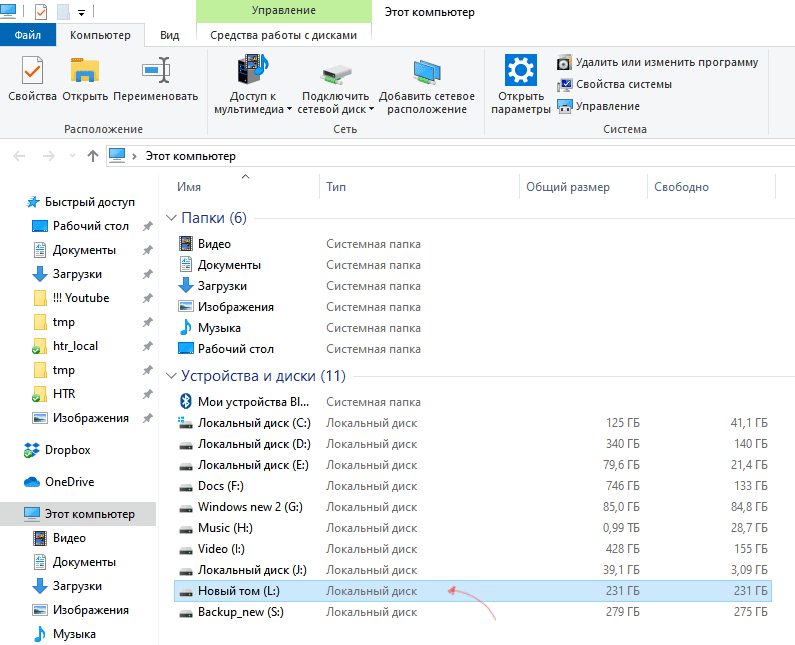
Cause 4: A hidden partition
Another reason your computer might not see the SSD in Windows 10 or another OS is a hidden partition. This can happen because of user error or a software glitch during a partitioning operation.
Method 1
You can unhide the partition like this:
- Open Disk Management.
- Select the hidden partition, right-click it, and choose "Mark Partition as Active".
- Check whether the drive now appears in File Explorer.
Method 2
The Kerish Doctor utility offers a wide range of tools for fixing Windows system errors. It can make changes that aren't easily accessible to regular users. Here's how to use it to make the SSD visible:
- Download Kerish Doctor from the official website (pick the right Windows version).
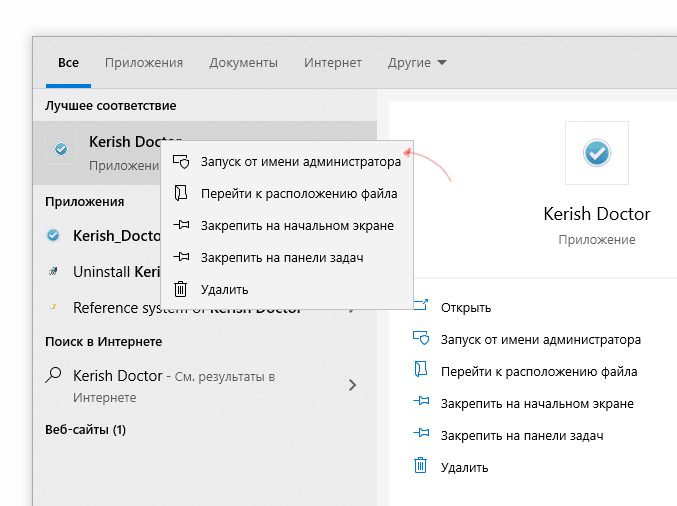
- Install and run it as administrator.
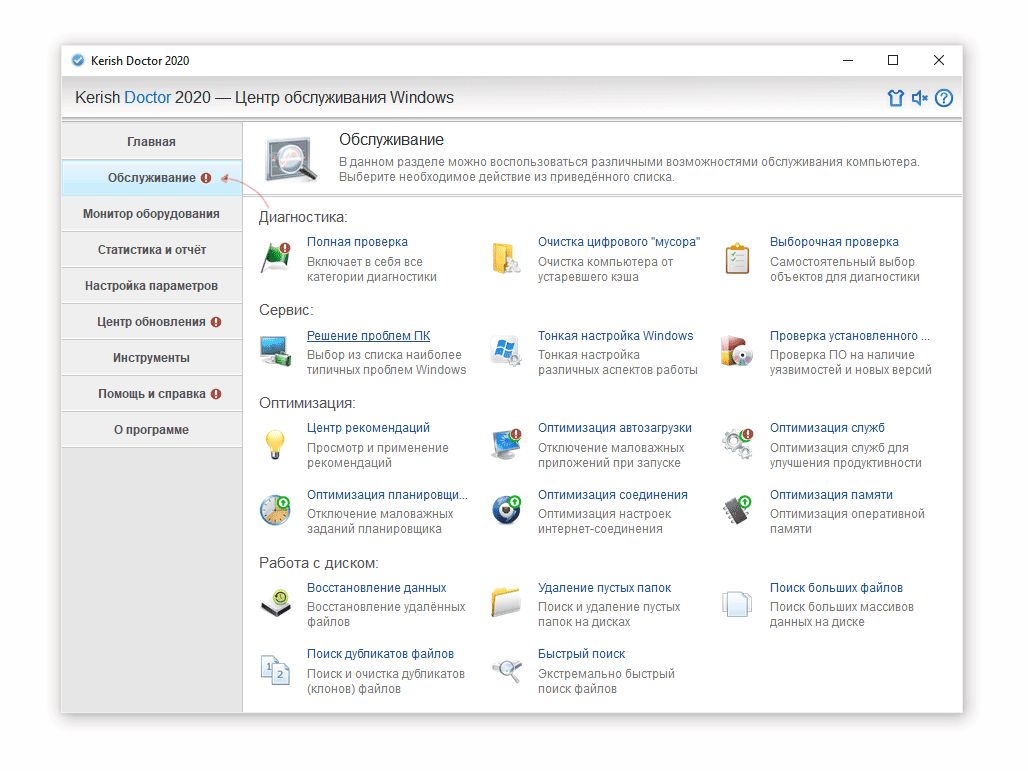
- Go to Maintenance > Solving PC problems.
- Choose Local drives are not displayed or Windows does not react to connection of the new device.
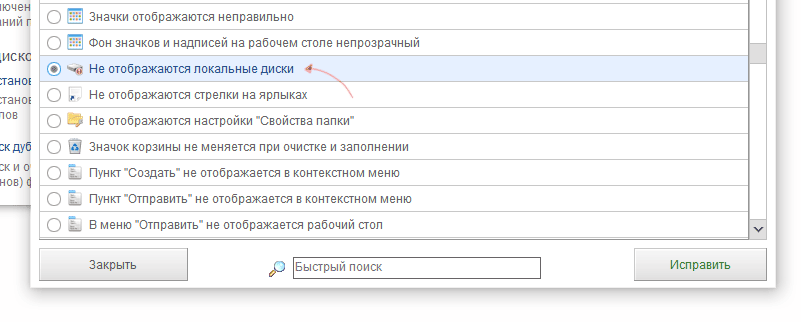
- Click Repair and wait for the process to finish.
Cause 5: Unsupported file system (RAW)
An SSD may be formatted with a file system Windows can't read, so every attempt to access it fails. The error is usually accompanied by messages like "You need to format the disk before you can use it", "The file system is not recognized", and so on.
This happens with both brand-new drives and heavily used ones. In the latter case, system faults — often triggered by other PC issues — are usually the cause.
There are two ways to fix the incompatibility.
Formatting the SSD
- If the SSD is brand new, format it. Here's a guide to formatting a hard drive.
- Do the same with a used drive (or partition) as long as it doesn't hold any data you need.
How to format an SSD:
- Open Disk Management.
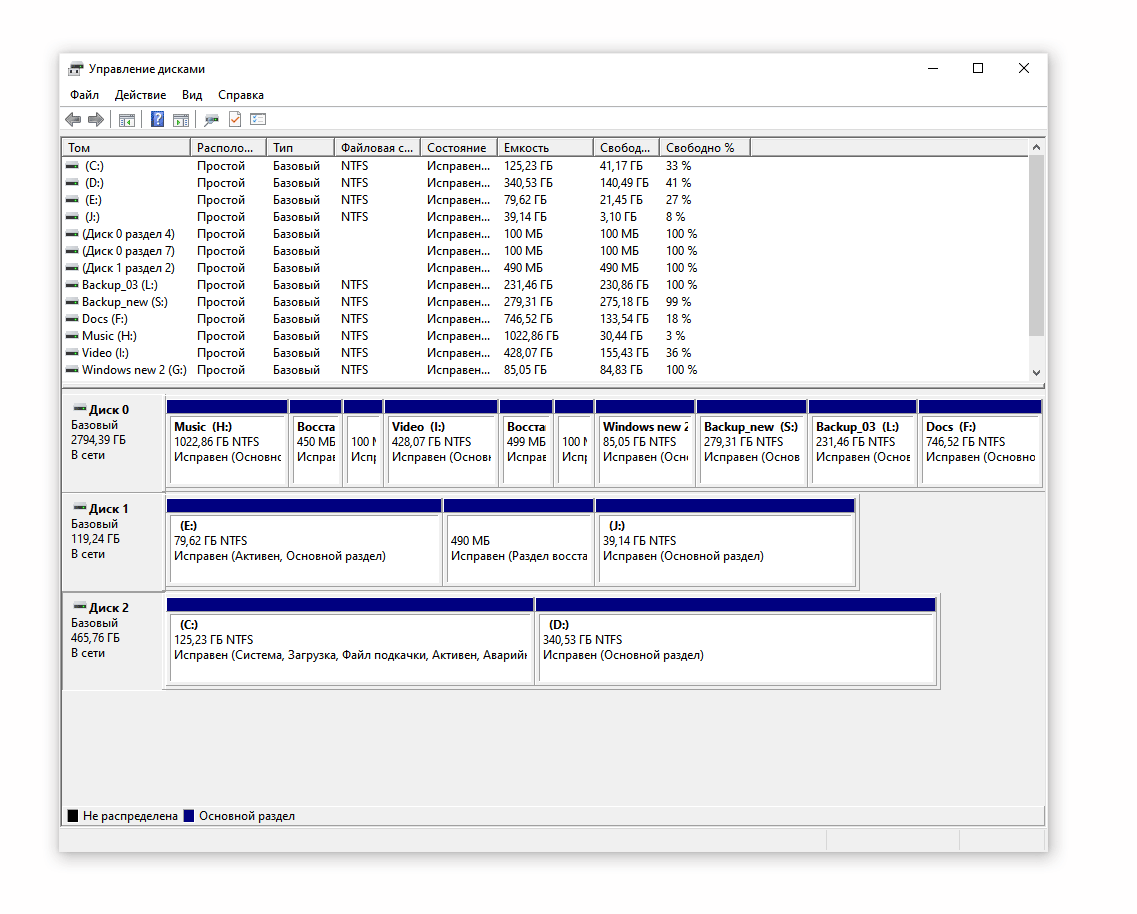
- Right-click the partition or drive where the File System column says RAW.
- Choose Format.
- Set a label and pick NTFS as the new file system.
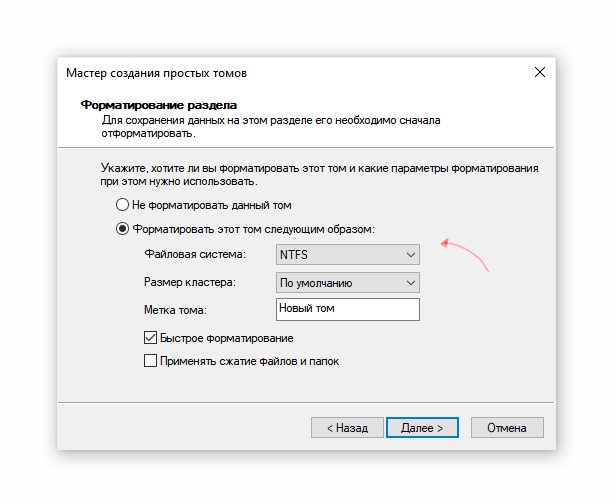
- Click OK to confirm.
Checking the SSD for errors
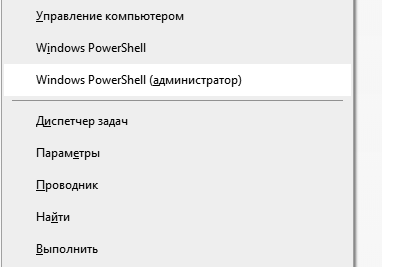
- Press Win + X.
- Choose Windows PowerShell (Admin). If it's not there, use "Command Prompt (Admin)".
- Run: chkdsk a: /f, where a is the drive letter — check yours and substitute the right one.
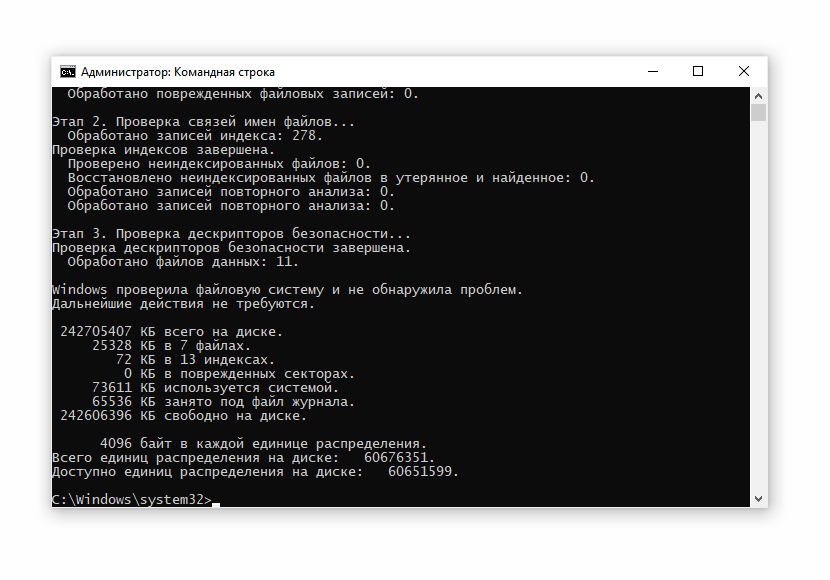
- Press Enter and wait for the process to complete.
Guide: How to check a disk for errors
Cause 6: BIOS and hardware problems
Another cause of an undetected SSD — one that's often overlooked. Checklist:
- Carefully inspect the physical connections between the SSD and the PC.
- Check the jumpers — they might be bent. If they look fine, wipe with alcohol and try again.
- If nothing has changed, look at the cable: if it isn't seated firmly, replace it or try to reseat the connection.
- After reconnecting, try gently lifting the drive and holding it at a slight angle.
Cause #7. SSD driver problems (OS conflict)
Driver problems are uncommon with SSDs, since Windows 10 supports most modern drives and hardware conflicts are rare.
But a driver error can't be ruled out entirely. If one shows up, try to fix it through the OS's own tools.
- Open Device Manager from the Start button's right-click menu. Alternative: Win + R > Run > devmgmt.msc > Enter.
- Double-click the Disk drives section. This lists every storage device connected to the PC. The problem SSD will show a yellow warning icon.
- Uninstall the SSD's driver via the right-click menu (choose Uninstall device).
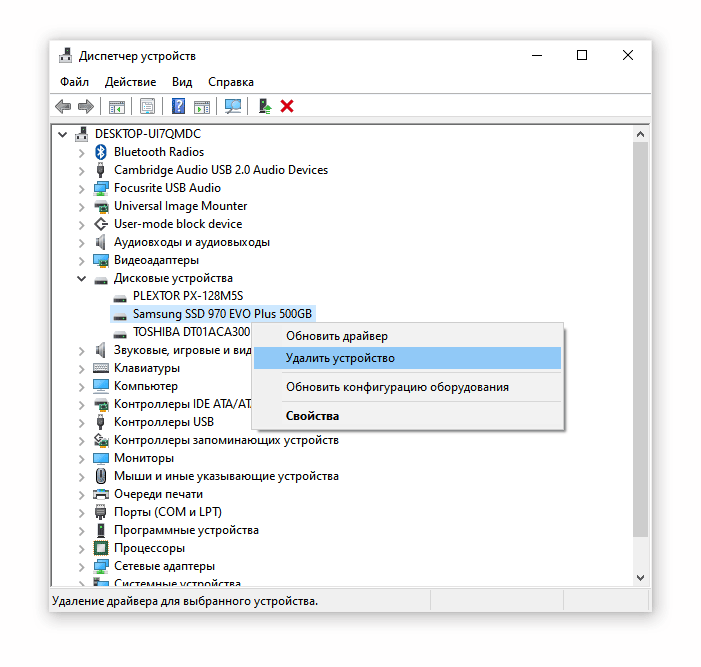
- Restart Windows. Alternatively, use "Update driver" from the SSD's right-click menu.
- Check the driver status under Disk drives.
Помощь
Не нашли ответ?
Опишите проблему — подскажем, куда двигаться дальше, и по возможности дополним материал.
Комментарии
Загружаем обсуждение…