Инструкция
How to Restore Deleted Bookmarks in Google Chrome
Updated September 3, 2026
Google Chrome syncs data online, which seemingly makes it impossible to lose. Still — after uninstalling Chrome, formatting a drive, and similar situations — the data can disappear.
Below we'll cover how to bring back bookmarks in the browser if you accidentally deleted them or they vanished on their own.
Restoring bookmarks from a backup file
If you had previously been making backups, restoring bookmarks is easy. To ensure your changes are always saved, create a Google account and open Chrome signed into it. Also check that bookmarks are being synced — you can do this in the settings menu, under "Sync and Google services" (Settings → Sync). Changes will then be recorded automatically.
Restoring bookmarks via Google history
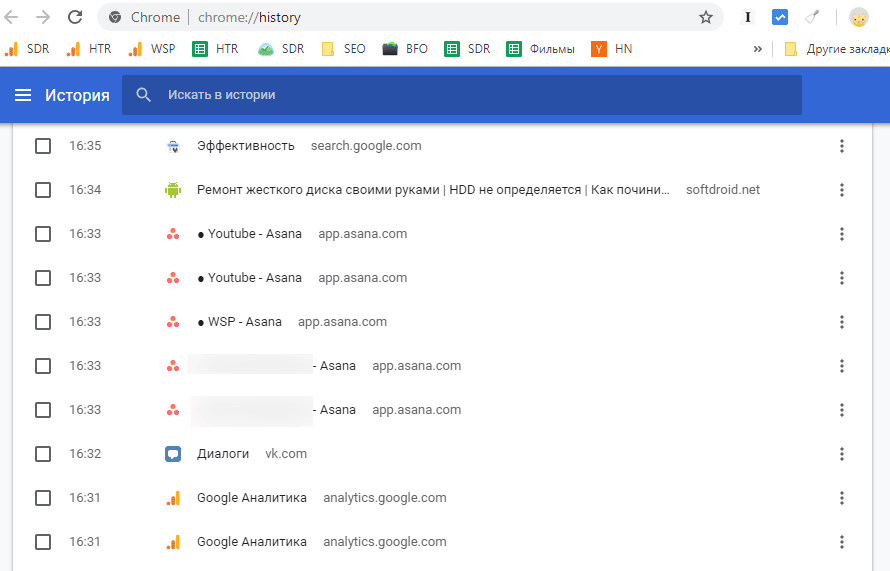
In the browser history you can find sites you visited over the last 3 months (provided the History wasn't cleared). Addresses of visited pages aren't the same as bookmarks, of course, but some of that information can be recovered.
If you sign into Chrome and sync history, the list also shows browsing data from every device you've been signed in on.
Note. When you browse in incognito mode, page URLs aren't saved.
You can open Chrome History:
-
Through the browser menu — it opens when you click the three-dot icon in the upper right. The history log is under "History".
-
By pressing the Ctrl + H shortcut (on Windows).
-
By typing chrome://history/ in the address bar (press Enter).
Finding the Bookmarks.bak file
If the first two methods didn't help restore your bookmarks, use specialized software. A popular utility for finding deleted files is Recuva. To do a recovery:
-
Download Recuva from the developer's site.
-
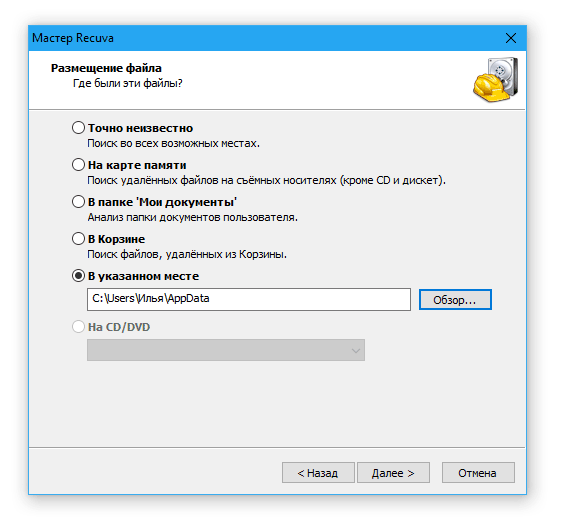
Launch the program and point it to the folder you need to search. In this case, that's the browser's profile folder:
C:\Users\[your username]\AppData\Local\Google\Chrome\User Data\Default. -
The program will run a search and, if it succeeds, find a Bookmarks file. Restore it to your PC and copy it into the Default folder, overwriting the current file.
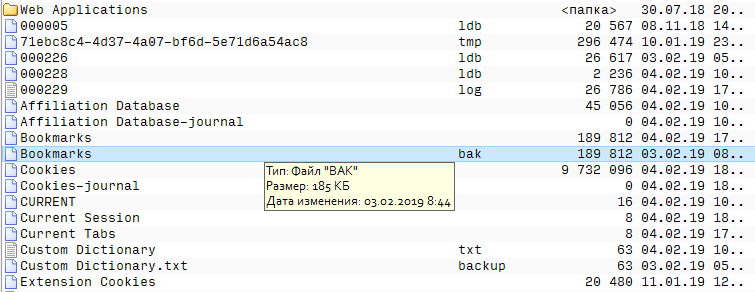
Chrome stores every bookmark you create in a file named "Bookmarks" (no .json extension). You can open and view its contents in Windows Notepad.
You'll need two files — Bookmarks and Bookmarks.bak. To check their contents, copy them to your desktop and open them in Notepad.
If the files contain a lot of the data you need, rename Bookmarks.bak by removing the .bak extension, copy it to your browser's profile folder on the C: drive. Close Chrome (you need to exit the browser entirely) and refresh the bookmarks.
Protecting bookmarks from accidental deletion
For the future — export your bookmarks as a separate file. What's convenient about this approach is that copies of your site URLs are always at hand, and you can also import them into other browsers.
Note. Bookmark export is not available in the mobile Google Chrome app.
How to export bookmarks to a local file:
- Open the browser, click the Google Chrome icon in the toolbar.
- In the menu that opens, click "Bookmarks".
- Click "Bookmark manager".
- In the blue bar on the right, click the "⋮" icon, and in the drop-down menu choose "Export bookmarks".
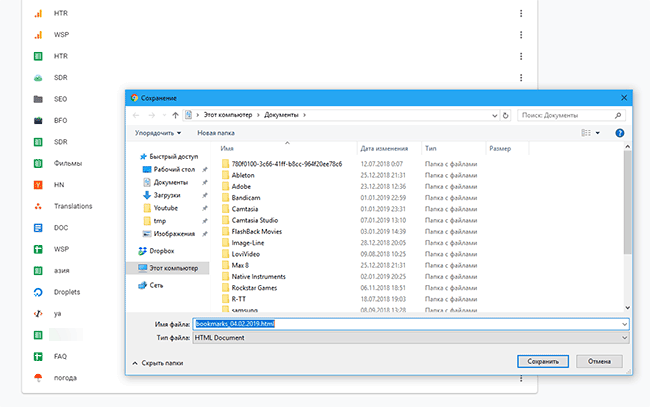
- In the file dialog, enter the file name to save and pick a folder.
- Click "Save".
That's it — now you have a file with exported bookmarks that you can always open to restore what you need.
Although the mobile app doesn't automatically access bookmarks from the exported file, you can use a small trick. On your mobile device, launch Google Chrome and sign in with the same account you use on your PC.
Q&A
My situation is dreadful! After a Chrome update (why on earth did I update it?!) all 175 of my bookmarks disappeared! (That's not a small setback — it's a TRAGEDY!) Please, help me (in plain English)! I have a Redmi Android. Please give me a way to get my bookmarks back!
Помощь
Не нашли ответ?
Опишите проблему — подскажем, куда двигаться дальше, и по возможности дополним материал.
Комментарии
Загружаем обсуждение…