Инструкция
Where Is the Clipboard on Android and How to Recover Copied Text
Updated September 3, 2026
This detailed guide collects answers to all sorts of questions about the Android clipboard, how to configure it, and its quirks. Where does copied data get stored, what does "copy to clipboard" actually mean, which alternative clipboard managers are on the Play Store, and how do you view what's in the clipboard.
Here's the full contents:
На странице
- What is the "clipboard" on a phone
- Where the clipboard lives on Android
- How to see what's copied to the clipboard
- Where the clipboard lives on Samsung
- How the clipboard stores data
- How to clear the Android clipboard
- The best clipboard managers for Android
- Clipper Clipboard Manager
- Clipto
- Clipboard Pro
If you have questions or run into trouble, leave a comment — happy to help!
What is the "clipboard" on a phone
The name says it all: it's a spot in the phone's memory that briefly holds text or images you've copied.
Early versions of Android didn't have an advanced clipboard. Today, though, it's hard to imagine a modern phone without one — and it can hold not just text but also photos and video files.
Where the clipboard lives on Android
The clipboard originally came from desktop computers. This idea, introduced in Windows and macOS, caught on so widely that keyboards even got a dedicated Print Screen key for copying text or images into Word or a graphics editor. Later, the same feature appeared on Samsung, HTC, and other flagship phones.
You'll often read that the clipboard lives in a special area of Android's RAM that you can't get into directly. That's not entirely accurate: you can reach it through clipboard-manager apps, and Samsung devices even offer advanced clipboard controls by default.
How to see what's copied to the clipboard
The clipboard only holds one snippet of text or data at a time, and here's how to see what it is:
- Copy the content you want to the clipboard (if you haven't already).
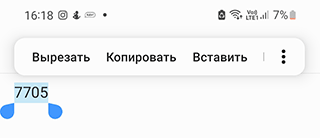
- Open any notes app or text editor.
- Press and hold on the text field.
- Choose Paste from the menu.
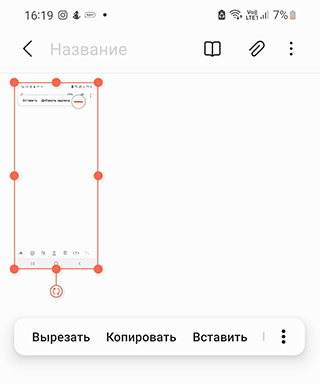
- The clipboard contents will now appear in the editor.
Some advanced clipboard managers let you view the contents of Android's clipboard memory directly (more on those below). That's handy if you need to juggle multiple copied snippets.
Where the clipboard lives on Samsung
Interestingly, Samsung Galaxy devices give you a bit more clipboard control than most other Android phones. In particular, you can peek at what's in memory and choose one of the previously copied items to paste.
To manage and configure the clipboard on Samsung devices:
- Open the Samsung Notes editor.
- Create a new note.
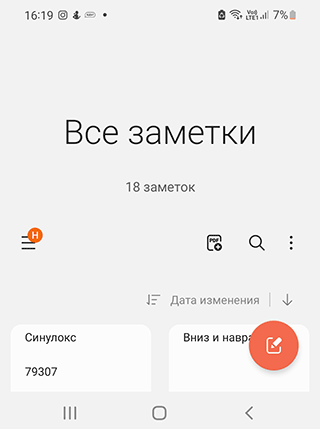
- Press and hold on empty space.
- Tap the three-dot button in the menu (that's the clipboard icon).
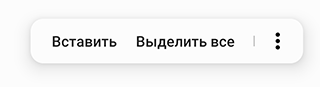
- Choose Clipboard.
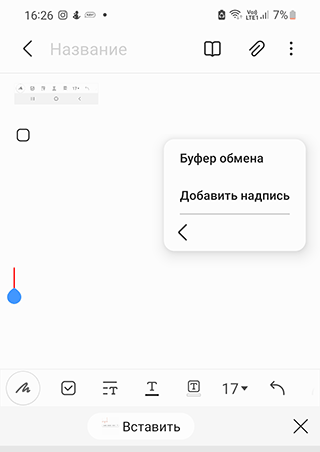
- Manage the clipboard contents however you like.
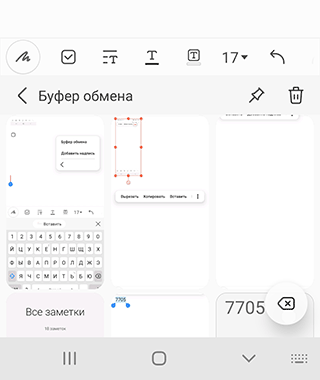
That gives you access to the extended clipboard features on newer Samsung Galaxy devices. On older models, use the S Memo editor instead of Notes.
How the clipboard stores data
A few things to keep in mind about the clipboard:
- The clipboard doesn't accumulate items — every new copy replaces the previous one. If you didn't paste the earlier snippet before copying something new, it's gone.
- Pasting doesn't erase the clipboard: you can paste the same snippet or image as many times as you like.
- The clipboard is cleared when you power the phone off, so you'll need to copy again after rebooting.
How to clear the Android clipboard
As mentioned above, Android's built-in clipboard holds only one snippet of text at a time. If you copy something new, it overwrites the previous entry.
Clearing the clipboard can free up a bit of RAM and help avoid slowdowns and stutters.
Method 1.
The simplest way to clear the clipboard is to reboot the phone: whatever was stored there will be wiped automatically.
Method 2.
To clear the clipboard manually:
- Open the root folder via a file manager.
- Find the data/clipboard folder.
- Delete everything inside.
- Go to Settings → Apps → All.
- Open TestService, tap Stop, then Clear data.
- Reboot Android.
These instructions are aimed mainly at advanced users who are comfortable poking around inside a mobile device.
The best clipboard managers for Android
Beyond the OS's built-in clipboard, there are third-party apps that add extended features. Here's a look at what they offer and where to get them.
Clipper Clipboard Manager
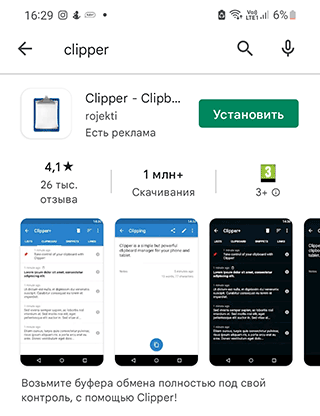
Clipper Clipboard Manager is an Android clipboard manager. It lets you edit copied text and images stored in the phone's memory and keep them organized. If you need to quickly save some web page content or a file and don't have a text or image editor handy, this app will help.
On first launch you'll see a short walkthrough of the main features. Everything currently in the clipboard is shown on-screen, so you can edit snippets or links and reuse them later.
Clipper's main features:
- Automatic clipboard history.
- Note editing.
- Snippet management: copy, delete, and import/export to an external file.
Clipper has three main tabs: lists, clipboard, and notes.
Anything copied in the background lands automatically in the "Clipboard" tab. It holds up to 20 items — after that, each new entry overwrites the oldest one.
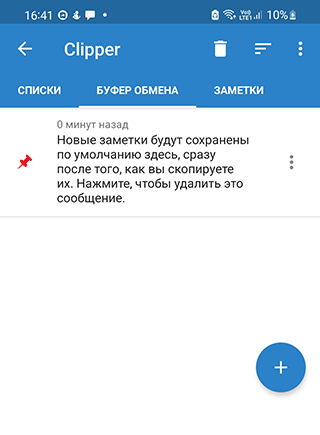
The "Notes" tab gives you quick access to specific text. It's a natural place for email-signature variants (business, personal), addresses, company details, and so on.
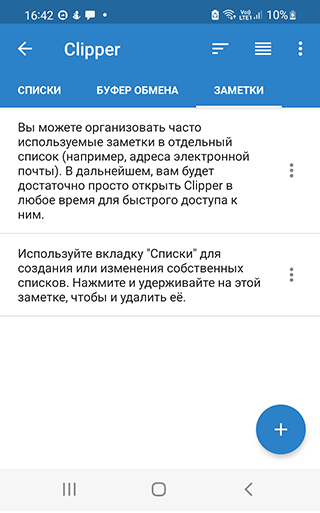
Notes can be grouped into "Lists" to help you find what you need faster. For example, you could put every phone number — mobile, office, home — in a "Phones" list.
The main advantage of this app is that no important snippet ever gets lost. That's especially handy when you regularly fill out the same forms on Android.
Download Clipper Clipboard Manager
Clipto
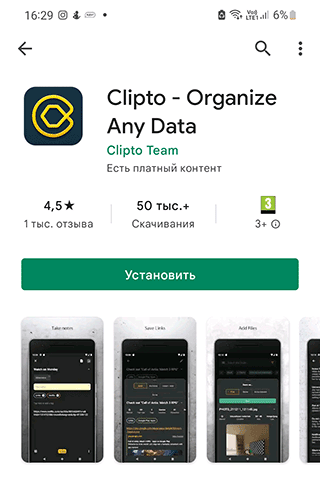
What's notable about this clipboard manager:
- A clean interface with a choice of colors and themes.
- Optional online sync between Android and the Windows or macOS clipboard.
- Everything still works offline, without an internet connection.
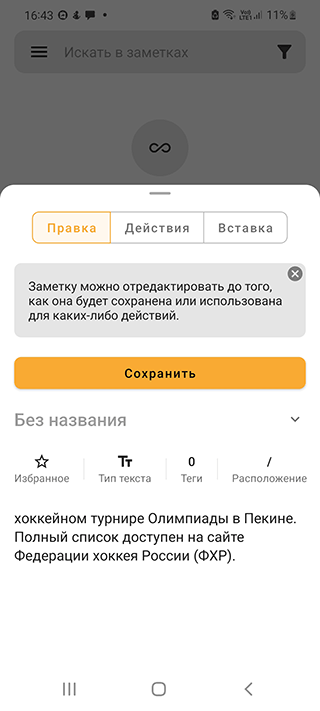
- On-the-fly conversion of copied snippets into text notes.
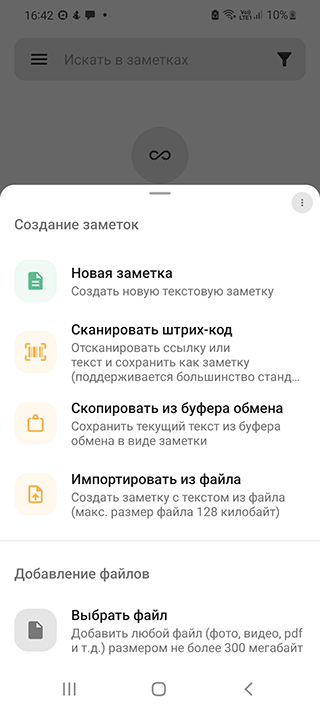
- Storing barcodes and QR codes in the clipboard.
- Adding files from device storage for copy and paste.
- The panel can be moved around the screen — it isn't pinned.
The trade-off is that you won't get maps, navigation, translation, search, or other advanced extras.
Clipboard Pro
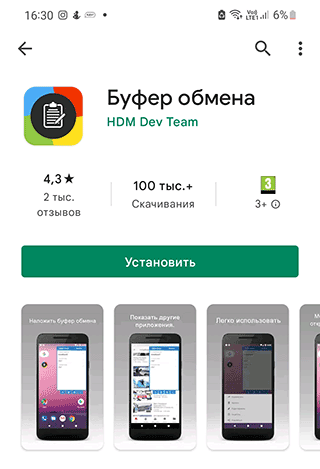
This one is essentially a small floating window that sits on top of other windows, with buttons for managing the clipboard.
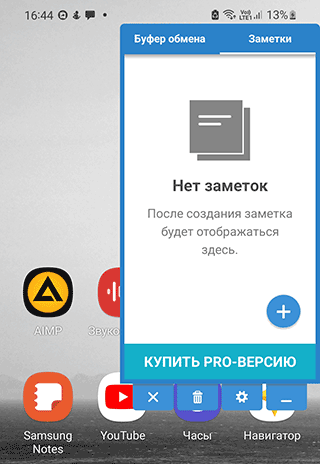
The feature set is surprisingly broad:
- Organizing notes from copied text,
- reading one-time passwords,
- auto-filling empty text fields,
- quick-settings notifications,
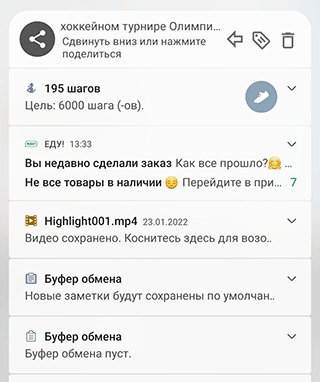
- cloud backup and sync between devices,
- fast search across clipboard contents,
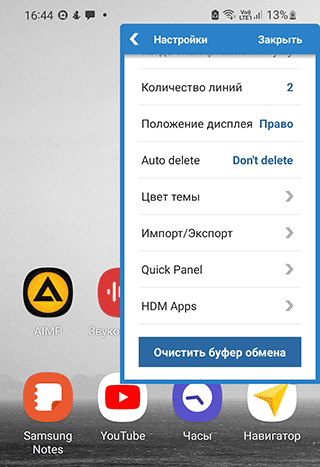
- auto-cleanup of the clipboard after a set time,
- copying and moving text from one device to another.
Clipboard Actions
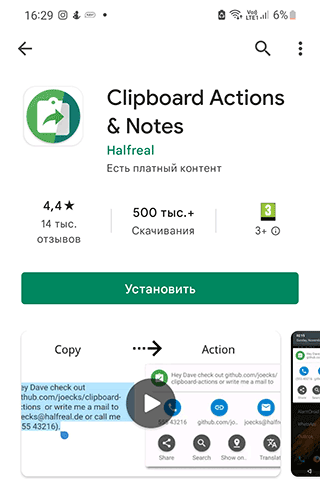
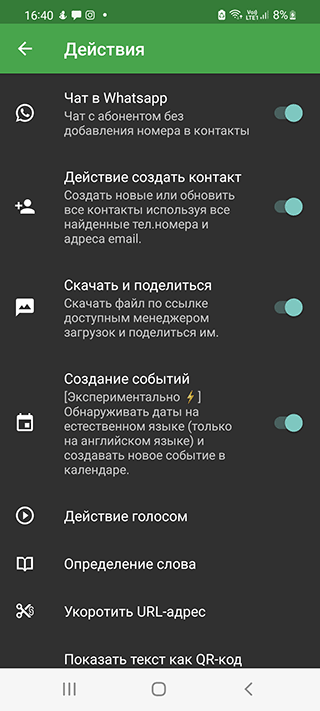
A free app that, on top of the usual feature set, offers extras like text-to-speech for the clipboard contents, currency conversion, translation between languages, Google search, and more.
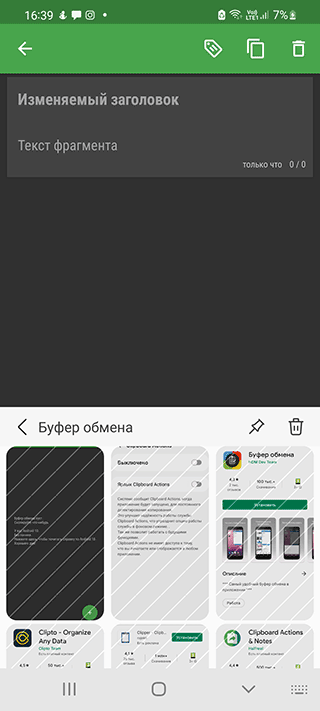
On first launch there's a short tour of the main options.
What the app offers:
- Fast image downloading.
- Shortening copied links.
- Copying and exporting notes.
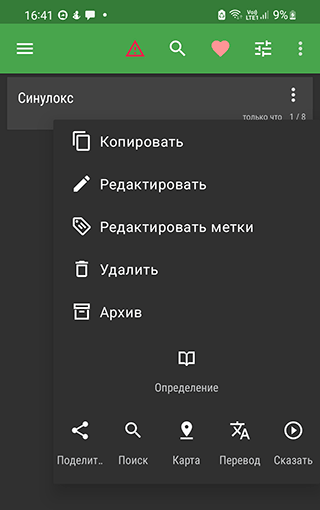
- Translating selected snippets of text.
- Dialing a phone number found inside copied text.
- Searching Google Maps for place names.
***
This article walked through what the clipboard is, where it lives on Android, how to clear it, the clipboard settings on Samsung, and the core features of several alternative managers. All of the utilities above are convenient and easy to use for copying and pasting — pick whichever one fits your workflow.
Помощь
Не нашли ответ?
Опишите проблему — подскажем, куда двигаться дальше, и по возможности дополним материал.
Комментарии
Загружаем обсуждение…